
The Best Fluffy Pancakes recipe you will fall in love with. Full of tips and tricks to help you make the best pancakes.
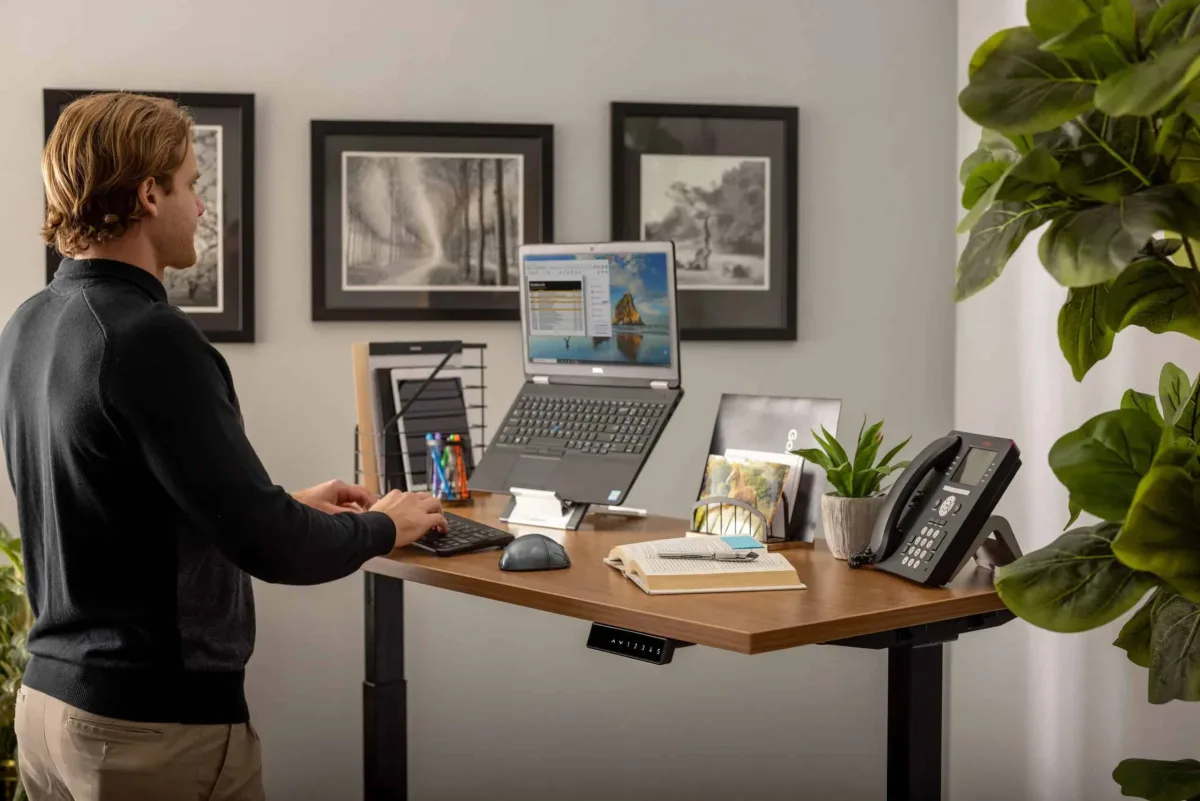
Ergonomic Essentials for Your Home Office Setup: Because Your Back Shouldn’t Hate Your Job
Let me paint you a picture, it’s 3 PM on a Tuesday, and you’re hunched over your laptop like a medieval scribe transcribing the Dead Sea Scrolls. Your shoulders feel like they’ve been bench-pressing cinder blocks, your wrists are staging a silent protest, and your lower back? Well, it’s sending you very clear signals that it’s one Zoom meeting away from filing a formal grievance. Sound familiar?
I’ve been there. When I first transitioned to full-time remote work back in 2020-back when “WFH” was still a novelty and not a permanent fixture of modern life, I treated my home office setup like an afterthought. A folding chair from IKEA, a coffee table repurposed as a desk, and a laptop perched precariously on a stack of cookbooks (because, you know, aesthetic). Fast forward five years, and I’ve learned the hard way that ergonomics isn’t just a buzzword, it’s the difference between ending your day feeling like a functional human and feeling like you’ve been put through a medieval torture device.
Here’s the thing: your home office isn’t just a place where you work, it’s where you spend a third of your life. And if you’re not intentional about how you set it up, you’re basically slow-cooking a recipe for chronic pain, eye strain, and the kind of fatigue that makes you want to nap face-first into your keyboard. But here’s the good news: you don’t need a PhD in biomechanics or a corporate budget to create a setup that actually works for your body. Over the years, I’ve tested, tweaked, and occasionally cursed at enough ergonomic gear to know what’s worth the investment, and what’s just snake oil with a sleek design.
In this guide, we’re diving deep into the ergonomic essentials for your home office setup in 2025-from the non-negotiables (like chairs that don’t double as instruments of torture) to the often-overlooked details (like why your monitor height might be the root of all your neck problems). We’ll talk about what actually matters, what’s just hype, and how to make adjustments that fit your body, not some one-size-fits-all corporate standard. And because I’m not here to sell you a $2,000 chair, I’ll also share budget-friendly swaps and DIY hacks that’ll save your spine without breaking the bank.
So, grab a cup of coffee (or, let’s be honest, whatever caffeine delivery system you’re using to survive the afternoon slump), and let’s fix your workspace, before your body forces you to.
-
The Non-Negotiables: Where to Splurge (and Where to Save)
1. Your Chair: The Throne of Productivity (or Pain)
Let’s start with the elephant in the room, or rather, the thing you’re probably sitting on right now. Your chair is the foundation of your ergonomic setup, and if it’s wrong, everything else is just putting lipstick on a pig. I get it: dropping $500+ on a chair feels indulgent, especially when you could just… keep using that dining room chair that’s “fine, really.” But here’s the brutal truth: a bad chair doesn’t just make you uncomfortable, it actively sabotages your posture, your focus, and your long-term health.
So, what makes a chair “ergonomic”? It’s not just about having a mesh back or adjustable armrests (though those help). The gold standard is a chair that supports dynamic sitting-meaning it adapts to your movements instead of forcing you into one rigid position. Look for:
- Adjustable lumbar support: Your lower back should be supported in a way that maintains its natural curve. If the chair doesn’t have built-in lumbar support, a separate lumbar cushion is a must.
- Seat depth and width: You should be able to sit with your back against the chair and still have 2-3 inches between the edge of the seat and the back of your knees. Too deep? Your thighs get compressed. Too shallow? Your back isn’t supported.
- Armrests that adjust in height and width: Your elbows should rest at a 90-degree angle, and your shoulders should be relaxed, not shrugged up like you’re cold.
- Recline functionality: A chair that lets you recline slightly (around 100-110 degrees) takes pressure off your spine and encourages movement.
Now, the big question: do you eed a Herman Miller Aeron or a Steelcase Gesture? Not necessarily. If you’ve got the budget, those chairs are fantastic, but there are plenty of great alternatives under $300. The Hbada Ergonomic Office Chair and the Sihoo M57 are solid mid-range options that punch above their weight. And if you’re really strapped for cash? A kneeling chair or even a yoga ball (used intermittently) can be better than a static, unsupportive chair, though I’d argue that’s a temporary fix, not a long-term solution.
Pro tip: If you’re testing chairs in-store, don’t just sit for 30 seconds. Ask if you can work on your laptop for 10-15 minutes. Your body will thank you later.
2. Desk Height: Why Your Wrists and Shoulders Are Secretly Plotting Against You
Here’s a fun fact: most standard desks are too high for the average person. That’s right, the 29-30 inch desks you find at Office Depot were designed for a time when people wrote on paper, not typed on laptops. When your desk is too high, your shoulders hunch up, your wrists bend unnaturally, and you end up with that lovely tingling sensation in your hands that’s either carpal tunnel syndrome or the ghost of a future workers’ comp claim.
The ideal desk height allows your elbows to rest at a 90-degree angle with your forearms parallel to the floor. For most people, that’s around 27-28 inches from the floor to the desk surface. But here’s the catch: if you’re taller or shorter than average, that number changes. A 6’2” person might need a 30-inch desk, while someone who’s 5’2” might be better at 26 inches.
So, how do you fix this?
- Adjustable desks: A height-adjustable desk (electric or manual) is the gold standard. Brands like Uplift and Fully make great options, but they’re pricey. If you’re on a budget, the FlexiSpot E1 is a solid entry-level choice.
- DIY fixes: No budget for a new desk? Try:
- Raising your chair and using a footrest (even a stack of books) to keep your feet flat.
- Lowering your chair and adding a keyboard tray under the desk to bring your arms to the right height.
- Using a lap desk if you’re working from a couch or bed (though I’d argue that’s a last resort).
- Standing desks: Yes, they’re trendy, but they’re not a magic bullet. The key is movement-alternating between sitting and standing every 30-60 minutes. If you go this route, invest in an anti-fatigue mat (your feet will thank you).
One thing I’ve learned the hard way: don’t assume your desk is the right height just because it “feels fine.” Measure it. Adjust it. Your wrists will stop plotting your demise.
3. Monitor Setup: Why You’re Giving Yourself Tech Neck (and How to Stop)
Raise your hand if you’ve ever spent an entire workday hunched over your laptop like a vulture eyeing its next meal. *Both hands up?* Yeah, me too. Here’s the problem: when your screen is too low, you crane your neck forward, which puts about 10 extra pounds of pressure on your cervical spine for every inch your head juts forward. Over time, this leads to tech neck-a lovely modern condition that gives you headaches, shoulder pain, and the posture of a question mark.
The fix? Your eyes should be level with the top third of your screen, and the monitor should be about an arm’s length away. If you’re using a laptop, this means you eed an external monitor or a laptop stand. Here’s how to set it up:
- Laptop users: Get a laptop stand (the Rain Design mStand is a classic, but even a stack of sturdy books works in a pinch) and pair it with an external keyboard and mouse. This lets you raise the screen to eye level while keeping your arms in a neutral position.
- Dual monitors: If you’re using two screens, place the primary monitor directly in front of you and the secondary monitor at a 30-degree angle. Avoid having them at different heights, your neck isn’t meant to swivel like an owl’s.
- Monitor arms: These let you adjust the height and angle of your screen easily. The Amazon Basics Premium Monitor Stand is a budget-friendly option that gets the job done.
- Blue light filters: While we’re talking monitors, let’s address the elephant in the room-eye strain. If you’re staring at screens all day, enable a blue light filter (like f.lux or Night Shift) or invest in blue light-blocking glasses. Your retinas will thank you at 2 AM when you’re not wide awake wondering why you can’t sleep.
I’ll admit, I resisted getting a monitor stand for years because “it’s just one more thing to buy.” But after a particularly brutal week of neck pain, I caved, and within days, the difference was night and day. Your neck wasn’t designed to hold up a bowling ball all day. Treat it kindly.
4. Keyboard and Mouse: The Silent Culprits of Wrist Pain
If you’ve ever woken up with numb fingers or a wrist that feels like it’s been through a meat grinder, your keyboard and mouse are probably to blame. Repetitive strain injuries (RSIs) like carpal tunnel syndrome don’t happen overnight, they’re the result of small, cumulative stresses over time. And if you’re using a standard keyboard and mouse without any thought to ergonomics, you’re basically rolling out the welcome mat for RSIs.
Here’s what you need to know:
- Keyboard position: Your keyboard should be at a height where your elbows are at 90 degrees and your wrists are straight, not bent up or down. If your desk is too high, a negative-tilt keyboard tray (like the 3M Adjustable Keyboard Tray) can help.
- Ergonomic keyboards: Split keyboards (like the ErgoDox EZ or the Microsoft Sculpt) reduce wrist pronation (that twisting motion that strains your forearms). They take some getting used to, but if you type all day, they’re worth the adjustment period.
- Mouse alternatives: A standard mouse forces your wrist into an unnatural position. Consider:
- A vertical mouse (like the Evoluent VerticalMouse), which keeps your wrist in a neutral “handshake” position.
- A trackball mouse (like the Logitech MX Ergo), which reduces wrist movement.
- A touchpad (if you’re used to laptops, this might feel more natural).
- Wrist rests: These are controversial, some ergonomists say they encourage you to rest your wrists while typing (a no-no), while others argue they provide support during breaks. If you use one, make sure it’s soft and low-profile, and only rest your palms on it between typing, not during.
I’ll be honest: switching to an ergonomic keyboard felt like learning to type all over again. For the first week, I was slower than a dial-up connection. But after a month? My wrists stopped aching, and my typing speed actually improved. Sometimes, short-term discomfort leads to long-term gains.
5. Lighting: The Overlooked Ergonomic Essential
Here’s something most “ergonomic” guides don’t talk about: lighting. Bad lighting doesn’t just strain your eyes, it can cause headaches, fatigue, and even mood swings (ever notice how fluorescent lighting makes you feel like you’re in a dystopian office park?). The goal is to minimize glare and create even, diffused light that doesn’t force your eyes to work overtime.
How to nail it:
- Avoid overhead lighting: It creates harsh shadows and glare on your screen. If you can’t turn it off, use a desk lamp as your primary light source.
- Position your desk near a window (but not directly in front of it): Natural light is ideal, but direct sunlight on your screen is a recipe for eye strain. Use blackout curtains or sheer blinds to control the light.
- Use bias lighting: A small LED light behind your monitor (like the Bias Lighting LED Strip) reduces eye strain by balancing the brightness between your screen and the surrounding environment.
- Color temperature matters: Aim for warm white (2700K-3000K) in the evening and cool white (4000K-5000K) during the day. This mimics natural light cycles and helps regulate your circadian rhythm (aka, you’ll sleep better).
I used to think lighting was just about “seeing my keyboard.” Then I spent a week working in a dimly lit room and ended up with a migraine that felt like a tiny construction worker was jackhammering my temples. Lighting isn’t just aesthetic, it’s functional.
The Often-Ignored (But Critical) Extras
6. Footrests: Why Your Feet Are the Unsung Heroes of Posture
Here’s a question: where are your feet right now? If you’re like most people, they’re either dangling like a kid on a too-tall chair or pressed flat against the floor with your knees at an awkward angle. Your feet are the foundation of your posture-if they’re not supported, your entire body compensates, leading to back pain, hip tightness, and even shoulder tension.
The fix? A footrest. It doesn’t have to be fancy, even a stack of books or a small stool can work. The goal is to keep your feet flat (or at a slight angle) with your knees at 90 degrees and your thighs parallel to the floor. If your chair is too high, a footrest bridges the gap. If your chair is too low, it helps maintain circulation.
Pro tip: If you’re prone to fidgeting, a rocking footrest (like the Humanscale FM300) lets you move your feet while you work, which can improve focus and reduce restlessness.
7. Document Holders: Because Neck Craning Is a Full-Time Job
If you regularly work with physical documents (or even a second screen), chances are you’re constantly looking down, then up, then down again, like a human ping-pong ball. This repetitive neck movement is a one-way ticket to stiffness and pain. The solution? A document holder that sits at eye level, next to your monitor.
You don’t need anything fancy, a simple clipboard stand or even a binder clip attached to your monitor can work. The key is to keep your documents at the same eye level as your screen so you’re not constantly tilting your head.
8. Cable Management: The Hidden Stressor You Didn’t Know You Had
Clutter isn’t just an eyesore, it’s a mental drain. Studies show that a messy workspace increases cortisol (the stress hormone) and decreases productivity. And nothing says “chaos” like a rat’s nest of cables snaking across your desk.
Fixing it is simpler than you think:
- Use cable sleeves or Velcro ties to bundle cords together.
- Invest in a USB hub to reduce the number of individual cables.
- Try a cable management tray (like the IKEA Signum) to keep cords off your desk surface.
- Go wireless where possible-wireless keyboards, mice, and charging pads reduce clutter significantly.
I resisted dealing with my cable situation for months because “it’s not that bad.” Then I spent 20 minutes organizing them, and suddenly, my desk felt like a Zen garden. Small changes, big impact.
9. Air Quality and Temperature: The Invisible Ergonomic Factors
Here’s something no one talks about: your office’s air quality and temperature affect your productivity and comfort just as much as your chair does. Ever notice how you get sleepy in a warm room or jittery in a cold one? That’s not a coincidence.
Ideal conditions for a home office:
- Temperature: Aim for 68-72°F (20-22°C). Too cold, and you’ll be distracted by shivering; too hot, and you’ll feel sluggish.
- Humidity: 40-60% is the sweet spot. Dry air irritates your sinuses and skin, while humid air can feel stifling. A small humidifier or dehumidifier can help.
- Air circulation: Stagnant air = brain fog. Open a window, use a small fan, or invest in an air purifier (especially if you have allergies).
- Plants: Not just for aesthetics-snake plants, pothos, and peace lilies improve air quality by filtering toxins.
I used to think air quality was just for “wellness gurus.” Then I got an air purifier, and suddenly, my afternoon slump disappeared. Turns out, breathing clean air helps you think clearer. Who knew?
10. Movement: The Ultimate Ergonomic Hack
Here’s the harsh truth: no chair, desk, or monitor setup can save you if you’re sitting still for 8 hours a day. The human body wasn’t designed for sedentary work, it was designed to move. And when you don’t, you’re basically turning your muscles into jelly and your joints into rusty hinges.
So, how do you incorporate movement into a desk job?
- Take micro-breaks: Every 20-30 minutes, stand up, stretch, or walk around for 1-2 minutes. Set a timer if you have to.
- Use a standing desk (correctly): Standing all day is just as bad as sitting all day. The key is to alternate every 30-60 minutes.
- Stretch at your desk: Simple stretches like neck rolls, shoulder shrugs, and seated twists can prevent stiffness.
- Invest in a balance board or under-desk bike: These let you move while you work. The FluidStance Level is a great balance board for standing desks.
- Walk and talk: If you’re on a call, pace around the room or do a few lunges. Your brain works better when your body is in motion.
I used to think “ergonomics” meant “sitting perfectly still in the correct position.” Then I realized that the best posture is your next posture. Now, I set a timer to stand up every 30 minutes, even if it’s just to refill my water bottle. My back, and my focus, have never been better.
-
Putting It All Together: A Step-by-Step Ergonomic Audit
Overwhelmed? Let’s break it down into actionable steps. Grab a notebook (or open a doc) and let’s do an ergonomic audit of your workspace.
Step 1: Assess Your Current Setup
Take a photo of your workspace from the front and side. Now, ask yourself:
- Is my chair supporting my lower back, or am I slouching?
- Are my feet flat on the floor (or a footrest), or are they dangling?
- Is my monitor at eye level, or am I looking down?
- Are my wrists straight when I type, or are they bent?
- Is my desk cluttered with cables and random junk?
Step 2: Prioritize Your Fixes
Not everyone can overhaul their setup overnight. So, tackle the biggest pain points first. For example:
- If your back hurts, fix your chair and lumbar support.
- If your neck is stiff, adjust your monitor height.
- If your wrists ache, get an ergonomic keyboard or mouse.
Step 3: Make One Change at a Time
Don’t try to fix everything at once. Start with one adjustment per week and see how it feels. For example:
- Week 1: Adjust your chair height and add a lumbar cushion.
- Week 2: Raise your monitor to eye level with a stand or books.
- Week 3: Swap your mouse for a vertical or trackball model.
Step 4: Track Your Progress
Keep a pain/comfort journal for a week. Note:
- When and where you feel discomfort (e.g., “3 PM, lower back ache”).
- What you were doing when the pain started (e.g., “typing for 2 hours straight”).
- How adjustments affect your comfort (e.g., “raised monitor, neck feels better by day 3”).
Step 5: Iterate and Optimize
Ergonomics isn’t a one-and-done deal. Your body changes, your work changes, and your setup should too. Reassess every few months and tweak as needed.
Remember: perfection isn’t the goal, progress is. Even small changes can make a huge difference in how you feel at the end of the day.
-
The Psychological Side of Ergonomics: Why Comfort = Productivity
Here’s something I didn’t fully grasp until recently: ergonomics isn’t just about physical comfort, it’s about mental clarity. When your body is in pain or discomfort, your brain devotes energy to processing that discomfort, which means less bandwidth for focus, creativity, and problem-solving.
Think about it: when your back hurts, how easy is it to concentrate on a spreadsheet? When your wrists are tingling, how motivated are you to write that report? Physical discomfort creates mental friction, and mental friction kills productivity.
But the reverse is also true: when your workspace is optimized for your body, something magical happens. You stop noticing the chair beneath you. Your screen becomes an extension of your thoughts. Your hands move effortlessly across the keyboard. You’re not fighting your environment, you’re flowing with it.
That’s the real power of ergonomics. It’s not about spending a fortune on fancy gear (though some of that can help). It’s about removing the barriers between you and your best work. And in a world where so many of us are glued to screens for hours on end, that’s not a luxury, it’s a necessity.
So, as you tweak your setup, ask yourself: What’s one small change I can make today that will help me feel, and work, better tomorrow? Because at the end of the day, that’s what this is all about.
-
FAQ: Your Ergonomic Questions, Answered
Q: I don’t have the budget for a fancy ergonomic chair. What’s the best budget-friendly alternative?
A: You don’t need to spend $1,000 to get a decent chair. Look for used office chairs on Facebook Marketplace, Craigslist, or eBay-many companies sell barely-used chairs when they upgrade. Brands like HON, Steelcase (older models), and Herman Miller (refurbished) often pop up for a fraction of retail. If you’re buying new, the Hbada Ergonomic Chair (~$200) and the Sihoo M57 (~$300) are great mid-range options. And if you’re really strapped, try a kneeling chair or a yoga ball for short periods to engage your core and improve posture.
Q: I work from a laptop all day. What’s the minimal setup I need to make it ergonomic?
A: The absolute basics for a laptop setup:
- A laptop stand (or stack of books) to raise the screen to eye level.
- An external keyboard and mouse to keep your arms at 90 degrees.
- A footrest (if your feet don’t reach the floor).
This setup costs under $100 and will save your neck and wrists. If you can swing it, add a second monitor to reduce tab-switching strain.
Q: How often should I take breaks to stretch or move around?
A: The 20-20-20 rule is a good starting point: every 20 minutes, look at something 20 feet away for 20 seconds to reduce eye strain. For movement, aim to stand up or stretch every 30-60 minutes, even if it’s just for 30 seconds. Use apps like Stretchly or Stand Up! to remind you. And if you’re deep in flow, try the Pomodoro Technique (25 minutes of work, 5-minute break) to build in natural movement breaks.
Q: I’ve adjusted my setup, but I still have back pain. What am I missing?
A: Back pain can stem from multiple sources. Here’s a checklist to troubleshoot:
- Is your chair supporting your lower back? If not, add a lumbar cushion.
- Are you slouching or leaning forward? Try a kneeling chair or sit on a cushion to tilt your pelvis forward.
- Is your monitor too low, causing you to hunch? Raise it to eye level.
- Are you sitting for too long? Set a timer to stand up every 30 minutes.
- Do you have weak core or glute muscles? Strengthening these can reduce back strain. Try planks and bridges a few times a week.
- Is your stress level high? Tension in your shoulders and back can manifest as pain. Try deep breathing or meditation to release tension.
If the pain persists, consider seeing a physical therapist or ergonomic specialist for a personalized assessment.
-
Final Thoughts: Your Home Office, Your Rules
Here’s the thing about ergonomics: there’s no one-size-fits-all solution. What works for a 6’4” software engineer might not work for a 5’2” graphic designer. What feels great in a corporate office might not translate to a tiny apartment. And that’s okay. The goal isn’t to create a “perfect” setup, it’s to create a setup that works for you, in your space, with your body and your workflow.
So, as you make changes, trust your body. If something feels off, tweak it. If a “recommended” adjustment doesn’t work for you, ditch it. Ergonomics isn’t about following rules, it’s about listening to your body and giving it what it needs to thrive.
And remember: small changes add up. You don’t need to overhaul your entire office in a weekend. Start with one thing, maybe it’s adjusting your monitor height or swapping your mouse. See how it feels. Build from there.
Because at the end of the day, your home office isn’t just a place where you work. It’s a place where you create, think, and (if we’re being honest) occasionally stare blankly at a spreadsheet while questioning your life choices. And if you’re going to spend that much time there, shouldn’t it at least be comfortable?
Now, go adjust that chair. Your future self will thank you.
@article{ergonomic-essentials-for-your-home-office-setup-a-pain-free-guide-to-working-from-home-in-2025,
    title   = {Ergonomic Essentials for Your Home Office Setup: A Pain-Free Guide to Working from Home in 2025},
    author  = {Chef's icon},
    year    = {2025},
    journal = {Chef's Icon},
    url     = {https://chefsicon.com/ergonomic-essentials-for-your-home-office-setup/}
}