The Best Fluffy Pancakes recipe you will fall in love with. Full of tips and tricks to help you make the best pancakes.
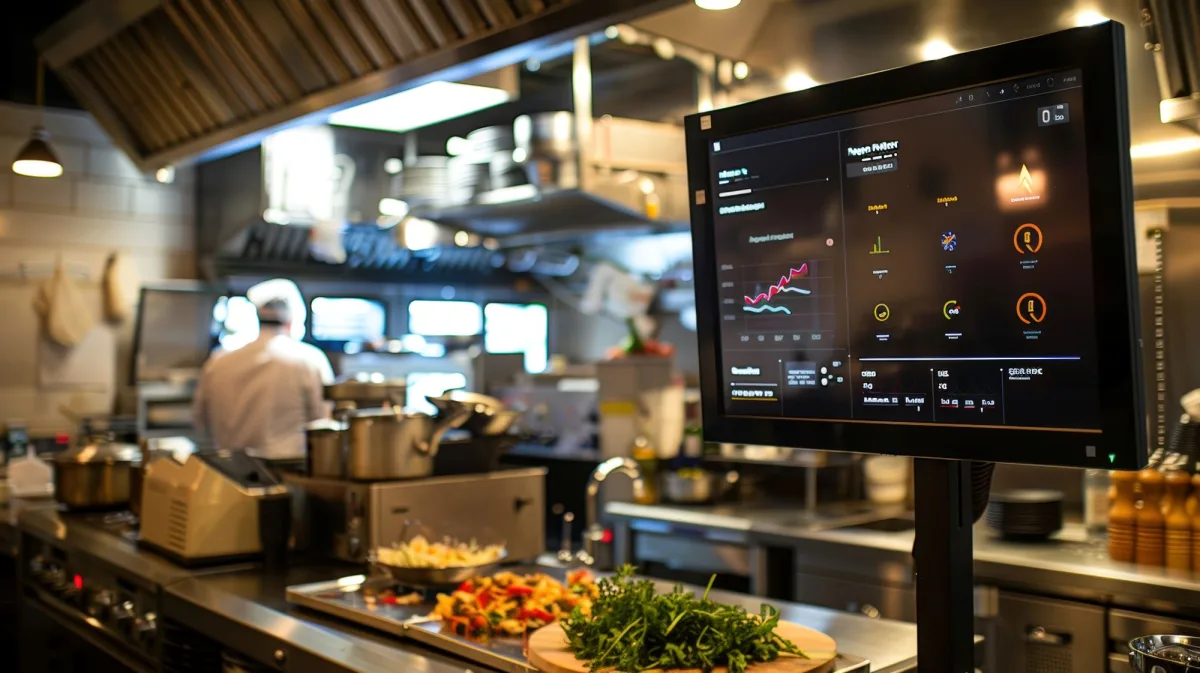
How to Integrate Your Dashboard Admin with Kitchen Management Software Without Losing Your Mind
Let me set the scene: It’s 2 a.m., and I’m sitting at my kitchen table in Nashville, Luna the cat curled up on my lap, staring at my laptop screen like it just insulted my mother. I’d just spent the last three hours trying to figure out why my restaurant’s dashboard admin wasn’t talking to our shiny new kitchen management software. The manual might as well have been written in hieroglyphics, and every time I thought I’d cracked it, some new error message would pop up like a bad ex at a bar. Sound familiar?
Look, I get it. You didn’t sign up to run a restaurant because you love troubleshooting tech integrations. You did it because you love food, or people, or the chaos of a busy service. But here’s the thing, if you’re still manually entering orders into your POS and then shouting them across the kitchen like it’s 1999, you’re leaving money on the table. And not just a little money. We’re talking about the kind of inefficiencies that can cost you thousands in wasted labor, food waste, and missed opportunities. So, let’s talk about how to make your dashboard admin and kitchen management software play nice, without requiring a computer science degree.
By the end of this guide, you’ll know:
- Why integration isn’t just a buzzword, it’s your restaurant’s nervous system
- How to assess your current setup (and why you might not be as ready as you think)
- The step-by-step process to connect your systems, even if you’re not a tech whiz
- Common pitfalls that’ll make you want to throw your laptop out the window (and how to avoid them)
- How to train your team so they don’t revolt when you roll out the new system
And hey, if I can figure this out after too many cups of coffee and a cat who thinks my keyboard is a heated bed, you can too. Let’s dive in.
The Big Picture: Why Integration Feels Like Trying to Solve a Rubik’s Cube Blindfolded
What Even Is Integration, Anyway?
Okay, let’s start with the basics because I’ve been guilty of throwing around jargon like “API” and “middleware” without really explaining what they mean. When we talk about integrating your dashboard admin with kitchen management software, we’re essentially trying to get two (or more) separate systems to talk to each other. Think of it like translating between two people who speak different languages, your POS system speaks “customer orders,” and your kitchen display system (KDS) speaks “cook this now.” Integration is the interpreter that makes sure nothing gets lost in translation.
But here’s where it gets messy. Not all systems are built to play well with others. Some are like that one kid in kindergarten who only wanted to play with their own toys. Others are more like the popular kid who’s friends with everyone but still has their own rules. Your job is to figure out which category your systems fall into and then find a way to make them cooperate. And trust me, it’s not always pretty.
I remember when I first tried to integrate our POS with our KDS. I assumed it’d be as simple as flipping a switch. Spoiler: It wasn’t. There were compatibility issues, data format mismatches, and a whole lot of “error: invalid request” messages that made me question my life choices. But here’s the thing, once it’s set up correctly, it’s like magic. Orders flow seamlessly from the front of house to the kitchen, tickets update in real time, and you stop hearing the phrase “Did you get that order?” every five seconds. It’s worth the headache, I promise.
Why You Can’t Afford to Ignore This
Let’s talk numbers for a second, because nothing gets my attention like a good stat. According to a study by Toast, restaurants that integrate their POS with kitchen management software see a 20% reduction in order errors and a 15% increase in table turns. That’s not chump change. For a mid-sized restaurant doing $2 million in annual revenue, that could mean an extra $300,000 in sales. And that’s before you even factor in the savings from reduced food waste and labor costs.
But it’s not just about the money. It’s about sanity. I can’t tell you how many times I’ve watched a server scribble an order on a pad, run it to the kitchen, and then have the cook misread their handwriting. Or worse, the server forgets to mention a modification, and suddenly you’ve got an angry customer and a plate of food that’s about to get wasted. With integration, those little mistakes become a thing of the past. Orders go straight from the POS to the KDS, complete with all the modifications, special requests, and even allergy notes. It’s like having a superpower.
And let’s not forget about the data. When your systems are integrated, you get real-time insights into what’s selling, what’s not, and where your bottlenecks are. Maybe you notice that orders with gluten-free modifications take twice as long to prepare. Or maybe you see that your kitchen is consistently backed up between 7 and 8 p.m. on Fridays. That kind of data is gold. It lets you make informed decisions about menu changes, staffing, and even kitchen layout. Speaking of which, if you’re in the market for new equipment, companies like Chef’s Deal offer free kitchen design services that can help you optimize your space based on your actual workflow data. It’s like having a crystal ball for your restaurant.
But Wait, Isn’t This Going to Be a Nightmare?
Okay, I’ll level with you. Integration isn’t always smooth sailing. There are going to be moments when you want to scream, cry, or both. But here’s the thing, most of the horror stories I hear come from restaurants that didn’t plan properly. They assumed it’d be as simple as plugging in a USB drive, and when it wasn’t, they panicked. Don’t be that restaurant.
The key is to go in with your eyes open. Know what you’re getting into, set realistic expectations, and have a plan for when (not if) things go sideways. Because they will. There’s no such thing as a perfect integration. But if you’re prepared, you can minimize the headaches and get back to doing what you do best, running a killer restaurant.
So, where do you start? Let’s break it down.
Step 1: Assess Your Current Setup (Or, Why You Might Not Be as Ready as You Think)
The Hardware Audit: What’s Under the Hood?
Before you even think about integration, you need to take a hard look at your current setup. And I mean a hard look. Grab a notebook (or, if you’re like me, a half-used napkin from last night’s service) and start making a list. What POS system are you using? What kitchen management software do you have in place? What other systems are in the mix, inventory management, scheduling, payroll? Write it all down, no matter how insignificant it seems.
Now, here’s where it gets tricky. Not all systems are created equal. Some are built on modern, cloud-based platforms that play well with others. Others are relics from the early 2000s that were designed to work in isolation. And then there are the systems that fall somewhere in between, modern enough to be useful, but old enough to have compatibility issues. You need to figure out where your systems fall on that spectrum.
Let me give you an example. A few years ago, I worked with a restaurant that was using a POS system from the early 2010s. It was reliable, but it wasn’t exactly cutting-edge. When they tried to integrate it with a newer KDS, they ran into all sorts of issues. The POS couldn’t handle the data format the KDS expected, and the KDS couldn’t interpret the signals the POS was sending. It was like trying to fit a square peg into a round hole. In the end, they had to upgrade their POS to a more modern system before they could even think about integration.
So, ask yourself: Are your systems up to date? Do they have the necessary APIs (that’s Application Programming Interfaces, for the uninitiated) to communicate with other software? If you’re not sure, don’t panic. Most software providers have documentation that’ll tell you what you need to know. And if you’re still stuck, give them a call. That’s what customer support is for.
Oh, and while you’re at it, take a look at your hardware. Are your terminals, printers, and kitchen displays in good working order? Integration puts extra strain on your systems, so if your hardware is already on its last legs, now’s the time to upgrade. Companies like Chef’s Deal offer a wide range of commercial kitchen equipment, from POS terminals to kitchen display systems, and they can help you find the right fit for your needs. Plus, their expert consultation and support can save you a lot of headaches down the road.
The Software Audit: What’s Talking to What?
Now that you’ve got a handle on your hardware, it’s time to dive into your software. This is where things can get really messy, because restaurants often have a patchwork of systems that have been added over time. You might have a POS system, a KDS, an inventory management tool, a scheduling app, and a payroll system, all from different providers. And none of them talk to each other.
Start by mapping out your current workflow. How does an order get from the customer to the kitchen? What happens after that? Where are the bottlenecks? Where are the points of failure? Draw it out if you have to. I’ve found that a whiteboard or a big sheet of paper can be incredibly helpful here. You’d be surprised how many inefficiencies you’ll spot just by visualizing the process.
Next, identify the gaps. Where are you relying on manual processes? Where are you entering the same data into multiple systems? Those are the areas where integration can make the biggest difference. For example, if you’re manually entering inventory counts into your POS and then again into your inventory management system, that’s a prime candidate for automation. Same goes for scheduling, if you’re entering employee hours into your payroll system and then again into your scheduling app, you’re wasting time and increasing the risk of errors.
Finally, think about your goals. What do you want to achieve with integration? Faster order processing? Reduced food waste? Better data insights? More accurate inventory tracking? Write it all down. This’ll help you stay focused when things get overwhelming (and they will).
The Team Audit: Who’s Going to Freak Out?
Here’s something I see a lot of restaurant owners overlook: the human element. Integration isn’t just about technology, it’s about people. And people, as we all know, can be resistant to change. If you roll out a new system without preparing your team, you’re going to have a mutiny on your hands.
Start by talking to your staff. Ask them about their pain points. What’s working well? What’s driving them crazy? Where do they see opportunities for improvement? You might be surprised by what you hear. I once worked with a restaurant where the servers were spending an extra 10 minutes per shift manually entering orders into the KDS because the POS integration was glitchy. They’d just accepted it as part of the job, but once we fixed the integration, their efficiency skyrocketed. Don’t assume you know what your team needs, ask them.
Next, think about training. Integration isn’t just about getting the systems to talk to each other, it’s about getting your team to use them effectively. That means training, and lots of it. Don’t skimp on this step. A poorly trained team will undermine even the best integration. Trust me, I’ve seen it happen.
Finally, consider the culture. Change is hard, especially in a high-stress environment like a restaurant. If your team is used to doing things a certain way, they’re going to push back when you introduce something new. Be patient. Explain the benefits. Show them how the new system will make their lives easier. And most importantly, listen to their feedback. They’re the ones using the system day in and day out, so their input is invaluable.
Step 2: Choose Your Integration Method (Or, How to Avoid the “Square Peg, Round Hole” Problem)
Option 1: Native Integration (The Easy Way, If You’re Lucky)
If you’re lucky, your POS and KDS were designed to work together. This is what’s known as ative integration, and it’s the holy grail of restaurant tech. With native integration, the two systems are built to communicate with each other, so setup is usually as simple as flipping a switch. No coding, no middleware, no headaches.
But here’s the catch: Native integration is only an option if your POS and KDS are from the same provider or if they’ve explicitly partnered with each other. For example, Toast POS has native integrations with several KDS providers, including their own Toast KDS. Same goes for Square and Clover. If you’re using one of these systems, you’re in luck, integration should be a breeze.
But what if you’re not using a system with native integration? Don’t panic. There are still options. You just might have to get a little creative.
Option 2: API Integration (The DIY Approach, If You’re Brave)
If native integration isn’t an option, your next best bet is API integration. An API, or Application Programming Interface, is essentially a set of rules that allows two systems to communicate with each other. Think of it like a translator. Your POS speaks one language, your KDS speaks another, and the API translates between them.
The good news is that most modern POS and KDS systems have APIs. The bad news is that setting up an API integration isn’t always straightforward. You’ll need to work with your software providers to get the necessary credentials, and you might need to do some light coding to get everything working. If you’re not comfortable with that, you might need to hire a developer. But don’t let that scare you off, API integration is one of the most flexible and powerful ways to connect your systems.
Here’s how it works: Let’s say you’re using a POS system that doesn’t have a native integration with your KDS. You’d start by checking the documentation for both systems to see if they have APIs. If they do, you’d then work with your software providers to get the necessary API keys and credentials. From there, you’d configure the API to map the data fields from your POS to your KDS. For example, you’d tell the API that the “customer name” field in your POS corresponds to the “guest” field in your KDS. Once that’s set up, the two systems should be able to communicate with each other.
Sound complicated? It can be. But the payoff is worth it. API integration gives you a lot of flexibility, and it’s usually more reliable than other methods. Plus, once it’s set up, you can usually forget about it. The systems will just work.
Option 3: Middleware (The Middleman, If You Need a Little Help)
If API integration sounds like too much work, or if your systems don’t have APIs, you might need to bring in a middleware solution. Middleware is essentially a third-party tool that sits between your POS and KDS and translates the data between them. Think of it like a universal adapter for your tech stack.
There are a lot of middleware solutions out there, and they vary in complexity and cost. Some are simple, plug-and-play tools that require minimal setup. Others are more robust (and more expensive) platforms that can handle complex integrations. The key is to find one that works with your specific systems.
Let me give you an example. A few years ago, I worked with a restaurant that was using a legacy POS system that didn’t have an API. They wanted to integrate it with a modern KDS, but they couldn’t find a middleware solution that worked with their POS. In the end, they had to switch to a different POS system that was compatible with their chosen middleware. It was a pain, but it was worth it. The new system saved them hours of manual data entry every week.
If you’re considering middleware, do your research. Talk to your software providers and see if they have any recommendations. And don’t be afraid to reach out to other restaurant owners for advice. Chances are, someone else has been in your shoes and can point you in the right direction.
Option 4: Custom Development (The Nuclear Option, If All Else Fails)
If none of the above options work for you, you might need to consider custom development. This is the nuclear option, expensive, time-consuming, and not for the faint of heart. But if you have very specific needs or are using highly customized systems, it might be your only choice.
Custom development involves hiring a developer (or a team of developers) to build a custom integration for your systems. This can be a great option if you have unique requirements, but it’s also the most expensive and time-consuming. You’ll need to work closely with your developer to define your needs, and you’ll need to be prepared for a lot of testing and troubleshooting.
I’ll be honest, this isn’t an option I recommend for most restaurants. Unless you have very specific needs or are using highly customized systems, there’s usually a simpler (and cheaper) solution. But if you’re in a situation where custom development is your only option, don’t despair. Just make sure you do your due diligence. Hire a reputable developer, get everything in writing, and be prepared for a long (and sometimes frustrating) process.
Step 3: Plan Your Integration (Or, How to Avoid the “We Should Have Done This First” Moment)
Define Your Goals (Again, Because It’s That Important)
I know I already talked about this, but it’s worth repeating. Before you start the integration process, you need to define your goals. What do you want to achieve? Faster order processing? Reduced food waste? Better data insights? More accurate inventory tracking? Write it all down, and be as specific as possible.
For example, don’t just say “I want to reduce food waste.” Say “I want to reduce food waste by 10% over the next six months by improving inventory tracking and order accuracy.” The more specific you are, the easier it’ll be to measure your success.
And don’t forget to involve your team. Ask them what they hope to get out of the integration. Their input is invaluable, and it’ll help you get buy-in when it’s time to roll out the new system.
Map Your Data Flows (Or, How to Avoid the “Where Did That Order Go?” Panic)
One of the biggest mistakes I see restaurants make is diving into integration without mapping out their data flows. This is a recipe for disaster. You need to know exactly how data is going to move between your systems, and you need to plan for every possible scenario.
Start by drawing a diagram of your current workflow. How does an order get from the customer to the kitchen? What happens after that? Where are the points of failure? Where are the bottlenecks? Once you’ve got that mapped out, you can start planning your integration.
For example, let’s say you’re integrating your POS with your KDS. You’ll need to map out how order data will flow from the POS to the KDS. What fields need to be included? How will modifications be handled? What about special requests or allergy notes? The more detailed you are, the smoother your integration will go.
And don’t forget about error handling. What happens if an order fails to transmit? What if there’s a data mismatch? What if the KDS goes offline? You need to plan for these scenarios, or you’ll be scrambling when they inevitably happen.
Set a Timeline (And Then Add a Buffer, Because Things Will Go Wrong)
Integration takes time. A lot of time. And if you don’t set a realistic timeline, you’re going to end up frustrated and behind schedule. So, how long does it take? Well, that depends on a lot of factors, the complexity of your systems, the method you’re using, the size of your restaurant, etc. But as a general rule, you should plan for at least a few weeks, if not a few months.
Start by breaking the integration process into smaller tasks. For example:
- Week 1: Research and planning
- Week 2: Hardware and software audit
- Week 3: Choose integration method
- Week 4: Set up and configure integration
- Week 5: Test and troubleshoot
- Week 6: Train staff
- Week 7: Roll out and monitor
And remember, this is just a rough estimate. Things will go wrong. Systems will fail. Data will get lost. So, add a buffer. A big one. Trust me, you’ll thank me later.
Assign Roles and Responsibilities (Or, How to Avoid the “I Thought You Were Handling That” Disaster)
Integration isn’t a one-person job. You’re going to need help. So, before you start, assign roles and responsibilities. Who’s going to be in charge of the project? Who’s going to handle the technical setup? Who’s going to train the staff? Who’s going to monitor the system after it’s rolled out?
Make sure everyone knows what’s expected of them, and make sure they have the time and resources to do their jobs. And don’t forget to communicate. Regular check-ins are key to keeping the project on track.
Here’s a pro tip: Assign a “champion” for the project. This is someone on your team who’s passionate about the integration and is willing to take ownership of it. They’ll be your go-to person for questions, troubleshooting, and morale-boosting when things get tough. Trust me, you’ll need them.
Step 4: Set Up and Configure Your Integration (Or, The Moment of Truth)
Start with a Sandbox (Because You Don’t Want to Break Your Live System)
Before you start messing with your live systems, set up a sandbox environment. A sandbox is essentially a test version of your systems where you can experiment without affecting your live data. This is where you’ll configure your integration, test it, and work out the kinks before rolling it out to your restaurant.
Most software providers offer sandbox environments, so check with your POS and KDS providers to see if they have one. If they don’t, you might need to set up a separate test environment. This can be a pain, but it’s worth it. Trust me, you don’t want to be troubleshooting integration issues during the dinner rush.
Once you’ve got your sandbox set up, start configuring your integration. Follow the documentation for your chosen method (native, API, middleware, etc.), and take it one step at a time. Don’t rush. And don’t forget to test as you go. The last thing you want is to get to the end of the setup process and realize something’s not working.
Configure Your Data Mappings (Or, How to Avoid the “Why Is the Salad Showing Up as a Burger?” Problem)
One of the most important (and most tedious) parts of integration is data mapping. This is where you tell your systems how to interpret the data they’re receiving. For example, you’ll need to map the “customer name” field in your POS to the “guest” field in your KDS. You’ll also need to map menu items, modifiers, special requests, and more.
This is where things can get really messy. If your data mappings are off, you’ll end up with orders that don’t make sense. Imagine a customer ordering a salad, but the kitchen gets a ticket for a burger. Or a customer requesting no onions, but the kitchen doesn’t get that information. These are the kinds of mistakes that lead to wasted food, angry customers, and frustrated staff.
So, take your time with this step. Double-check your mappings, and test them thoroughly. And don’t forget to involve your kitchen staff. They’re the ones who’ll be using the system day in and day out, so their input is invaluable.
Set Up Error Handling (Because Things Will Go Wrong)
No matter how well you plan, things will go wrong. Orders will fail to transmit. Data will get lost. Systems will go offline. That’s just the reality of integration. But if you set up error handling ahead of time, you can minimize the damage.
Start by identifying the most common failure points. What happens if an order fails to transmit? What if there’s a data mismatch? What if the KDS goes offline? Once you’ve identified these scenarios, you can set up automated alerts and fallback processes.
For example, you might set up an alert that notifies you whenever an order fails to transmit. Or you might set up a fallback process that prints a paper ticket if the KDS goes offline. The key is to plan for these scenarios ahead of time, so you’re not scrambling when they happen.
And don’t forget to test your error handling. The last thing you want is to find out your alerts aren’t working when you’re in the middle of a busy service.
Test, Test, and Test Some More (Because You Can Never Be Too Sure)
Once you’ve got your integration set up, it’s time to test. And I mean really test. Don’t just run a few orders and call it a day. You need to test every possible scenario, modifiers, special requests, allergies, split checks, voids, comps, etc. The more thorough you are, the smoother your rollout will go.
Start by testing in your sandbox environment. Run through every possible order scenario, and make sure the data is flowing correctly between your systems. Then, move on to a small group of test users. This could be a few servers, a few cooks, or a mix of both. Have them use the system in a real-world setting, and gather their feedback.
And don’t forget to test your error handling. What happens if an order fails to transmit? What if there’s a data mismatch? What if the KDS goes offline? Test these scenarios, and make sure your fallback processes are working.
Finally, test during a real service. This is the moment of truth. Have your staff use the integrated system during a busy shift, and monitor it closely. Are orders flowing correctly? Are there any bottlenecks? Are there any error messages? If everything goes smoothly, you’re ready to roll out. If not, go back to the drawing board.
Step 5: Train Your Team (Or, How to Avoid the “I Hate This New System” Revolt)
Start with the Why (Because Nobody Likes Change for Change’s Sake)
Before you start training your team on the new system, explain the why. Why are you integrating your systems? What benefits will it bring? How will it make their lives easier? The more buy-in you can get upfront, the smoother your rollout will go.
For example, you might explain that the new system will reduce order errors, which means fewer comps and happier customers. Or you might explain that it’ll speed up order processing, which means faster table turns and more tips. Whatever the benefits, make sure your team understands them.
And don’t forget to address their concerns. Change is hard, and your team is going to have questions. Listen to them, and be patient. The more you can address their concerns upfront, the less resistance you’ll face down the road.
Break It Down (Because Nobody Wants to Sit Through a 4-Hour Training Session)
Training doesn’t have to be a marathon. In fact, it’s better if it’s not. Break it down into smaller, more manageable chunks. For example, you might start with a 30-minute overview of the new system, followed by a series of shorter, hands-on training sessions.
And don’t forget to tailor your training to your team’s needs. Your servers will need to know how to enter orders and handle modifications. Your cooks will need to know how to read the KDS and update order statuses. Your managers will need to know how to run reports and troubleshoot issues. Make sure everyone gets the training they need.
Here’s a pro tip: Use real-world scenarios in your training. For example, you might have your servers practice entering orders with modifiers, special requests, and allergies. Or you might have your cooks practice updating order statuses and handling voids. The more realistic the training, the better prepared your team will be.
Make It Hands-On (Because Nobody Learns by Watching)
People learn by doing. So, don’t just talk at your team, get them hands-on with the system. Set up a training environment where they can practice entering orders, updating statuses, and troubleshooting issues. The more they use the system, the more comfortable they’ll be with it.
And don’t forget to make it fun. Training doesn’t have to be boring. You might turn it into a game, with prizes for the fastest order entry or the fewest errors. Or you might set up a friendly competition between servers and cooks. Whatever you do, make sure your team is engaged and having fun.
Provide Ongoing Support (Because Nobody Remembers Everything After One Training Session)
Training isn’t a one-and-done deal. Your team is going to have questions, and they’re going to need ongoing support. So, make sure you’re available to help. Set up a dedicated channel for questions, and make sure your team knows how to reach you.
And don’t forget to gather feedback. Ask your team what’s working and what’s not. What do they like about the new system? What do they find frustrating? The more feedback you get, the better you can refine the system and the training process.
Finally, don’t forget to celebrate your successes. When your team masters a new feature, or when you hit a milestone, take a moment to acknowledge it. A little recognition can go a long way.
Step 6: Roll Out and Monitor (Or, How to Avoid the “We Should Have Tested More” Regret)
Start Small (Because You Don’t Want to Overwhelm Your Team)
When it’s time to roll out your new system, start small. Don’t try to switch everything over at once. Instead, start with a single station or a single shift. This’ll give you a chance to work out the kinks and gather feedback before rolling out to the entire restaurant.
For example, you might start by rolling out the new system to your lunch shift. This’ll give you a chance to test it during a slower period, when you have more time to troubleshoot. Once you’re confident that everything’s working, you can roll it out to your dinner shift.
And don’t forget to communicate. Let your team know what to expect, and make sure they’re prepared. The more transparent you are, the smoother the rollout will go.
Monitor Closely (Because Things Will Go Wrong)
Once your new system is up and running, monitor it closely. Are orders flowing correctly? Are there any bottlenecks? Are there any error messages? The more closely you monitor the system, the faster you can catch and fix any issues.
And don’t forget to gather feedback from your team. Ask them what’s working and what’s not. What do they like about the new system? What do they find frustrating? The more feedback you get, the better you can refine the system.
Here’s a pro tip: Set up automated alerts for common issues. For example, you might set up an alert that notifies you whenever an order fails to transmit. Or you might set up an alert that notifies you whenever the KDS goes offline. The more proactive you are, the less downtime you’ll have.
Be Prepared to Pivot (Because Things Will Change)
No matter how well you plan, things will change. Maybe your team finds a better way to use the system. Maybe you discover a new feature that makes your life easier. Maybe you run into an issue that requires a workaround. Whatever the case, be prepared to pivot.
And don’t forget to communicate. Let your team know what’s changing and why. The more transparent you are, the smoother the transition will be.
Celebrate Your Successes (Because You’ve Earned It)
Finally, don’t forget to celebrate your successes. Integration is a big deal, and it’s not easy. So, take a moment to acknowledge how far you’ve come. Celebrate your team’s hard work, and thank them for their patience and dedication.
And don’t forget to measure your results. Are you seeing the benefits you hoped for? Are orders flowing more smoothly? Are you seeing fewer errors? Are your table turns faster? The more you can quantify your success, the better you can justify the time and effort you put into the integration.
Common Pitfalls (And How to Avoid Them)
Pitfall 1: Underestimating the Time and Effort Required
Integration takes time. A lot of time. And if you underestimate how much time and effort it’ll take, you’re going to end up frustrated and behind schedule. So, be realistic. Plan for at least a few weeks, if not a few months. And don’t forget to add a buffer. Things will go wrong, and you’ll need time to troubleshoot.
Here’s a pro tip: Break the integration process into smaller tasks, and assign deadlines to each one. This’ll help you stay on track and avoid feeling overwhelmed.
Pitfall 2: Skimping on Training
Training is one of the most important parts of integration. If your team isn’t properly trained, they won’t use the system effectively, and you won’t see the benefits you hoped for. So, don’t skimp on training. Make sure your team gets the training they need, and make sure they’re comfortable with the system before you roll it out.
Here’s a pro tip: Use real-world scenarios in your training. The more realistic the training, the better prepared your team will be.
Pitfall 3: Ignoring the Human Element
Integration isn’t just about technology, it’s about people. And people can be resistant to change. If you ignore the human element, you’re going to face resistance, and your rollout won’t go smoothly. So, involve your team from the beginning. Explain the benefits, address their concerns, and make sure they’re on board.
Here’s a pro tip: Assign a “champion” for the project. This is someone on your team who’s passionate about the integration and is willing to take ownership of it. They’ll be your go-to person for questions, troubleshooting, and morale-boosting.
Pitfall 4: Not Testing Thoroughly
Testing is one of the most important parts of integration. If you don’t test thoroughly, you’re going to run into issues when you roll out the system. So, don’t skimp on testing. Test every possible scenario, and make sure your error handling is working.
Here’s a pro tip: Set up a sandbox environment where you can test the integration without affecting your live data. This’ll give you a chance to work out the kinks before you roll out the system.
Pitfall 5: Not Planning for the Worst
No matter how well you plan, things will go wrong. Orders will fail to transmit. Data will get lost. Systems will go offline. If you don’t plan for these scenarios, you’re going to be scrambling when they happen. So, set up error handling ahead of time, and make sure you have fallback processes in place.
Here’s a pro tip: Set up automated alerts for common issues. The more proactive you are, the less downtime you’ll have.
Wrapping Up: Is It Worth the Headache?
Let’s be real, integration isn’t easy. It takes time, effort, and a whole lot of patience. There will be moments when you want to scream, cry, or both. But here’s the thing: Once it’s set up correctly, it’s like magic. Orders flow seamlessly from the front of house to the kitchen, tickets update in real time, and you stop hearing the phrase “Did you get that order?” every five seconds. It’s worth the headache, I promise.
And let’s not forget about the data. When your systems are integrated, you get real-time insights into what’s selling, what’s not, and where your bottlenecks are. That kind of data is gold. It lets you make informed decisions about menu changes, staffing, and even kitchen layout. Speaking of which, if you’re in the market for new equipment, companies like Chef’s Deal offer free kitchen design services that can help you optimize your space based on your actual workflow data. It’s like having a crystal ball for your restaurant.
So, is it worth the headache? Absolutely. But only if you go in with your eyes open. Know what you’re getting into, set realistic expectations, and have a plan for when (not if) things go sideways. Because they will. But if you’re prepared, you can minimize the headaches and get back to doing what you do best, running a killer restaurant.
Now, if you’ll excuse me, I’ve got a cat to feed and a dashboard to integrate. Good luck, and may the tech gods be with you.
FAQ
Q: How long does it typically take to integrate a dashboard admin with kitchen management software?
A: The timeline can vary widely depending on the complexity of your systems, the integration method you choose, and the size of your restaurant. For a simple native integration, it might take a few days to a week. For a more complex API or middleware integration, it could take several weeks or even months. And don’t forget to factor in time for testing, training, and troubleshooting. As a general rule, plan for at least a few weeks, and add a buffer for unexpected issues.
Q: Do I need to hire a developer to integrate my systems?
A: It depends. If you’re using a native integration or a simple middleware solution, you might be able to set it up yourself. But if you’re using a more complex integration method, like an API or custom development, you might need to hire a developer. Even if you don’t need a developer, it’s a good idea to work with your software providers to make sure you’re setting everything up correctly. And if you’re in doubt, don’t hesitate to reach out to a professional. It’s better to spend a little extra money upfront than to deal with a botched integration down the road.
Q: What’s the most common mistake restaurants make when integrating their systems?
A: The most common mistake I see is underestimating the time and effort required. Integration takes time, and it’s not something you can rush. If you try to cut corners, you’re going to run into issues. Another common mistake is skimping on training. If your team isn’t properly trained, they won’t use the system effectively, and you won’t see the benefits you hoped for. Finally, many restaurants ignore the human element. Integration isn’t just about technology, it’s about people. If you don’t involve your team from the beginning, you’re going to face resistance, and your rollout won’t go smoothly.
Q: How can I measure the success of my integration?
A: Start by defining your goals. What do you want to achieve with integration? Faster order processing? Reduced food waste? Better data insights? More accurate inventory tracking? Once you’ve defined your goals, you can measure your success against them. For example, if your goal is to reduce food waste, you might track your food waste before and after the integration. If your goal is to speed up order processing, you might track your average order time. And don’t forget to gather feedback from your team. Ask them what’s working and what’s not. The more data you have, the better you can refine the system and measure your success.
@article{how-to-integrate-your-dashboard-admin-with-kitchen-management-software-a-step-by-step-guide-for-restaurant-owners,
    title   = {How to Integrate Your Dashboard Admin with Kitchen Management Software: A Step-by-Step Guide for Restaurant Owners},
    author  = {Chef's icon},
    year    = {2026},
    journal = {Chef's Icon},
    url     = {https://chefsicon.com/how-to-integrate-dashboard-admin-with-kitchen-management-software/}
}