The Best Fluffy Pancakes recipe you will fall in love with. Full of tips and tricks to help you make the best pancakes.
Why Your Restaurant’s WordPress Admin Feels Like a Cluttered Kitchen (And How to Fix It)
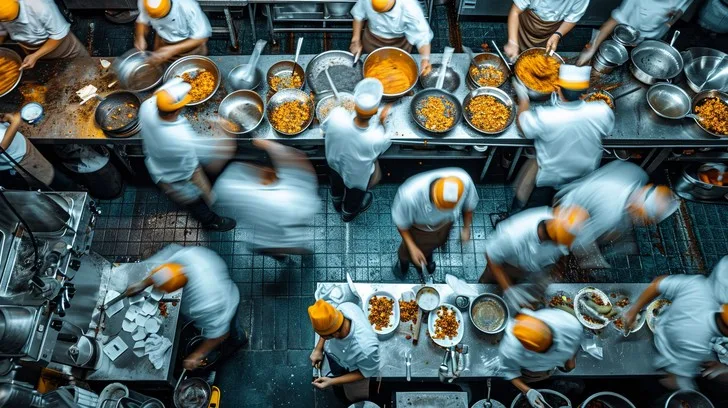
Let me set the scene: It’s 2026, and you’re standing in the middle of your restaurant’s kitchen during the dinner rush. The line cook is shouting for more garlic, the hostess is calling out a last-minute reservation change, and your phone is buzzing with a notification that the online ordering system just crashed, again. Now, imagine if your WordPress admin dashboard felt just as chaotic. That’s the reality for too many restaurant owners who treat their website backend like an afterthought. But here’s the thing: a well-organized WordPress admin isn’t just a nicety, it’s the difference between a smooth service and a meltdown.
I remember the first time I logged into a client’s WordPress dashboard to help them manage their restaurant website. It was like walking into a walk-in fridge where someone had just tossed all the ingredients into one giant bin. Plugins for reservations, online ordering, menu updates, and social media were all fighting for space, and the default WordPress interface wasn’t doing them any favors. There were tabs for things they’d never use, settings buried six layers deep, and a color scheme that made me question if I’d accidentally stumbled into a 2005 MySpace page. If your admin dashboard feels more like a obstacle course than a tool, you’re not alone.
So, why does this matter? Because your website isn’t just a digital brochure, it’s your 24/7 host, your online chef, and your virtual maître d’. If your team can’t navigate the backend efficiently, it’s like sending your servers out with half the menu memorized. Orders get lost, updates take forever, and before you know it, you’re spending more time troubleshooting your website than actually running your restaurant. In this guide, I’m going to walk you through how to customize your WordPress admin for restaurant management so it works for you, not against you. We’ll cover everything from simplifying the dashboard to automating repetitive tasks, and by the end, you’ll wonder how you ever survived without these tweaks.
Is this the *perfect* approach for every restaurant? Maybe not. But I’ve tested these methods with food trucks, fine-dining spots, and everything in between, and the results speak for themselves. So grab a coffee (or a bourbon, no judgment), and let’s dive in.
1. The Problem: Why the Default WordPress Admin Fails Restaurants
It’s Not You, It’s WordPress (Mostly)
Let’s be real: WordPress wasn’t built with restaurants in mind. It’s a powerful, flexible platform, sure, but out of the box, it’s like handing your line cooks a set of tools designed for a home kitchen and expecting them to plate 200 covers a night. The default admin dashboard is cluttered with widgets for things like “Quick Draft” and “WordPress Events and News,” which, unless you’re a blogger or a developer, are about as useful as a salad fork at a BBQ joint. For restaurant owners, the admin should prioritize what matters: menus, reservations, online orders, and customer feedback. Instead, it’s a maze of irrelevant options.
I once worked with a client who ran a small but busy sushi bar in Nashville. Their website was powered by WordPress, and every time they needed to update the menu, it took them 20 minutes just to find the right page in the admin. Why? Because their dashboard was still set to the default layout, with “Posts” and “Pages” given equal billing, even though they hadn’t published a blog post in over a year. Their reservations plugin was buried under a submenu, and their online ordering system required three separate logins. It was like trying to run a service with half your staff calling out sick. The first step to fixing this is admitting that the default WordPress admin isn’t built for your needs, and that’s okay.
The Hidden Costs of a Cluttered Admin
Here’s the thing no one tells you: a messy admin dashboard isn’t just annoying, it’s expensive. Every minute your staff spends clicking through irrelevant menus or searching for the right plugin is a minute they’re not spending on something that actually moves the needle for your business. Let’s break it down:
- Lost time: If your manager spends 15 minutes a day navigating a clunky admin, that’s 75 minutes a week, or 65 hours a year. That’s almost two full workweeks wasted on something that should take seconds.
- Increased errors: The more steps there are to complete a task, the more room there is for mistakes. Missed reservations, incorrect menu updates, or delayed responses to customer inquiries can all trace back to a confusing backend.
- Higher training costs: When your admin is a mess, every new employee needs a crash course in “how we do things here.” A streamlined dashboard means faster onboarding and less hand-holding.
- Missed opportunities: If updating your specials or promoting an event is a hassle, you’re less likely to do it. And in the restaurant business, out of sight really is out of mind.
I’m not saying you need to overhaul your entire website tomorrow. But if you’re nodding along right now, it’s time to ask yourself: What’s the real cost of doing nothing?
2. Step 1: Decluttering the Dashboard Like a Pro
Removing the Fluff (Without Breaking Anything)
Alright, let’s start with the low-hanging fruit: getting rid of the stuff you don’t need. The default WordPress dashboard comes with a bunch of widgets that, let’s be honest, most restaurant owners will never use. “At a Glance”? Cute, but not critical. “Activity”? Unless you’re running a blog, it’s just noise. Here’s how to clean it up:
First, head to your dashboard and look for the “Screen Options” tab in the top-right corner. Click it, and you’ll see a list of all the widgets currently displayed. Uncheck the ones you don’t need. For most restaurants, I recommend keeping only the following:
- Welcome to WordPress: It’s not essential, but it can be helpful for new users.
- Your custom widgets: We’ll talk about adding these later, but if you’ve already set some up, keep them.
- Any plugin-specific widgets: Some reservation or online ordering plugins add their own dashboard widgets, which can be useful.
Pro tip: If you’re not sure whether to keep something, ask yourself, “Does this help me run my restaurant more efficiently?” If the answer isn’t a resounding “yes,” ditch it.
Customizing the Admin Menu
Now that the dashboard is a little cleaner, let’s tackle the admin menu. This is the sidebar on the left side of your screen, and it’s where most of the action happens. The problem? It’s packed with options that don’t apply to restaurants. Here’s how to streamline it:
You can use a plugin like Admin Menu Editor to rearrange, rename, or hide menu items. For example, do you really need the “Comments” section if you’re not running a blog? Probably not. Here’s what I typically do for restaurant clients:
- Move “Pages” to the top: Most restaurant websites are built on pages (Home, Menu, About, Contact), not posts. Making “Pages” the first item in the menu saves time.
- Hide “Posts”: Unless you’re running a blog, this can go. If you do need it occasionally, you can always unhide it later.
- Rename “Media” to “Photos & Videos”: This makes it clearer what this section is for, especially for staff who aren’t tech-savvy.
- Group related plugins: If you’re using plugins for reservations, online ordering, and events, group them under a single menu item like “Restaurant Tools.”
Is this the *best* way to organize the menu? Maybe not for everyone, but it’s a start. The key is to think about how your team actually uses the admin and adjust accordingly. If your hostess is the one updating the website, ask her what would make her life easier. You might be surprised by the answers.
3. Step 2: Adding Restaurant-Specific Widgets
Why Widgets Are Your New Best Friend
Now that we’ve cleared out the clutter, let’s talk about adding back in the stuff that actually matters. Widgets are like the prep stations in your kitchen: they keep everything you need within arm’s reach. The right widgets can turn your dashboard from a generic workspace into a restaurant command center.
Here are a few widgets I recommend for restaurant websites:
- Upcoming Reservations: A widget that shows the next 24 hours of reservations at a glance. No more digging through emails or plugin dashboards.
- Online Orders: A real-time feed of incoming online orders, so you can see what’s coming in without leaving the dashboard.
- Daily Specials: A quick way to update your specials without navigating to the menu page. This is especially useful for restaurants that change their specials frequently.
- Customer Feedback: A widget that pulls in recent reviews or feedback from platforms like Google or Yelp. This helps you stay on top of your online reputation.
- Social Media Feed: A snapshot of your latest Instagram or Facebook posts, so you can see what’s being shared without leaving WordPress.
You can add these widgets using plugins or custom code, depending on your comfort level. For example, if you’re using a reservation plugin like OpenTable or Resy, check if it offers a dashboard widget. If not, you might need to create a custom widget using a plugin like Custom Dashboard Widgets or by adding some code to your theme’s functions.php file.
Creating a Custom “Restaurant Dashboard”
If you really want to take things to the next level, consider creating a custom dashboard page that serves as a hub for all your restaurant’s key metrics. This is like having a sous chef who hands you exactly what you need, when you need it. Here’s what you might include:
- Today’s Reservations: A table showing the time, party size, and any special requests for today’s reservations.
- Recent Online Orders: A list of the last 10 online orders, with the option to mark them as “prepped” or “delivered.”
- Inventory Alerts: A section that flags low-stock items, like “only 5 bottles of hot sauce left.”
- Upcoming Events: A calendar view of any upcoming promotions, private events, or holidays that might affect service.
- Quick Links: Buttons or links to the most frequently used pages, like “Update Menu,” “View Reservations,” or “Edit Specials.”
You can create this custom dashboard using a plugin like Dashboard Widgets Suite or by coding it yourself. If you’re not comfortable with code, I’d recommend starting with a plugin, it’s easier to tweak and update as your needs change.
I’ll be honest: setting this up takes a little time upfront. But once it’s done, it’s like having a personal assistant for your website. No more digging through menus or clicking through multiple pages to find what you need. Everything is right there, in one place.
4. Step 3: Simplifying Menu Management
The Nightmare of Updating Menus (And How to Fix It)
If there’s one task that restaurant owners dread more than deep-cleaning the fryer, it’s updating the menu on their website. And I get it. Most restaurant websites treat menus like a static page you update once a year, when in reality, they’re more like a living, breathing document that changes with the seasons, the chef’s whims, and the availability of ingredients. The default WordPress editor isn’t built for this.
I’ve seen restaurants try to manage their menus in all sorts of ways: as a PDF uploaded to the media library, as a series of images, or even as a Google Doc embedded on the page. None of these are ideal. PDFs are clunky and hard to update, images aren’t accessible or SEO-friendly, and Google Docs? Well, let’s just say it’s not the most professional look. Here’s what you should be doing instead:
- Use a menu plugin: Plugins like Restaurant Menu by MotoPress or Food Menu by WP Darko are designed specifically for restaurants. They let you create beautiful, responsive menus that are easy to update and look great on any device.
- Break it down by category: Instead of one giant menu page, create separate pages or sections for appetizers, entrees, desserts, and drinks. This makes it easier to update individual items without touching the rest of the menu.
- Add a “Specials” section: If your specials change frequently, create a dedicated section for them. This way, you can update them without touching the rest of the menu.
- Use shortcodes: Many menu plugins offer shortcodes, which let you embed menu items or categories anywhere on your site. This is great for promoting specials on your homepage or in blog posts.
Automating Menu Updates (Yes, It’s Possible)
Here’s where things get really interesting. What if I told you that you could automate parts of your menu updates? It’s not as far-fetched as it sounds. Here are a few ways to make menu management less of a chore:
- Sync with your POS system: Some POS systems, like Toast or Square, integrate with WordPress plugins. This means you can update your menu in your POS, and it will automatically update on your website. No more double-entry.
- Use a menu API: If your POS doesn’t integrate directly with WordPress, you might be able to use an API to pull menu data from your POS and display it on your website. This is a bit more technical, but it’s a game-changer for restaurants with frequently changing menus.
- Schedule updates: If you know your menu is going to change on a specific date (like for a seasonal special), you can schedule the update in advance. WordPress lets you schedule pages and posts, and some menu plugins offer this feature as well.
- Use conditional logic: Some plugins let you show or hide menu items based on certain conditions. For example, you could hide the “Lobster Roll” item if it’s out of season or show a “Happy Hour” menu only during certain hours.
I know what you’re thinking: “This sounds great, but isn’t it a lot of work to set up?” And you’re not wrong. But here’s the thing: the time you spend setting this up now will save you hours (or even days) down the road. Think of it like prepping mise en place before service. It takes time upfront, but it makes everything run smoother when it counts.
5. Step 4: Streamlining Reservations and Online Orders
Why Your Reservation System Shouldn’t Feel Like a DMV Visit
Let’s talk about reservations. If your current system feels like it was designed by someone who’s never worked in a restaurant, you’re not alone. Too many reservation plugins treat the process like a bureaucratic formality, with endless fields, confusing layouts, and zero personality. Your reservation system should feel as welcoming as your host stand.
Here’s what a good reservation system looks like:
- Simple and intuitive: The fewer fields, the better. Name, phone number, party size, date, and time should be the bare minimum. Anything else is just friction.
- Mobile-friendly: More than half of your reservations are probably coming from mobile devices. If your form isn’t easy to use on a phone, you’re losing business.
- Real-time availability: Nothing frustrates a customer more than filling out a form only to be told their preferred time isn’t available. Use a plugin that syncs with your calendar in real time.
- Automated confirmations: Send a confirmation email or SMS as soon as the reservation is made. This reduces no-shows and keeps customers informed.
- Easy management: Your staff should be able to view, edit, or cancel reservations without jumping through hoops. A clean, intuitive dashboard is key.
Popular plugins like OpenTable, Resy, or Amelia offer most of these features, but they can be pricey. If you’re on a budget, plugins like Restaurant Reservations by NerdPress or WPForms with a reservation add-on can get the job done without breaking the bank.
Making Online Orders as Smooth as Your Best Server
Online ordering is no longer a nice-to-have, it’s a must. But if your online ordering system feels like it was designed in the early 2000s, you’re leaving money on the table. A good online ordering system should be as smooth as your best server. Here’s what to look for:
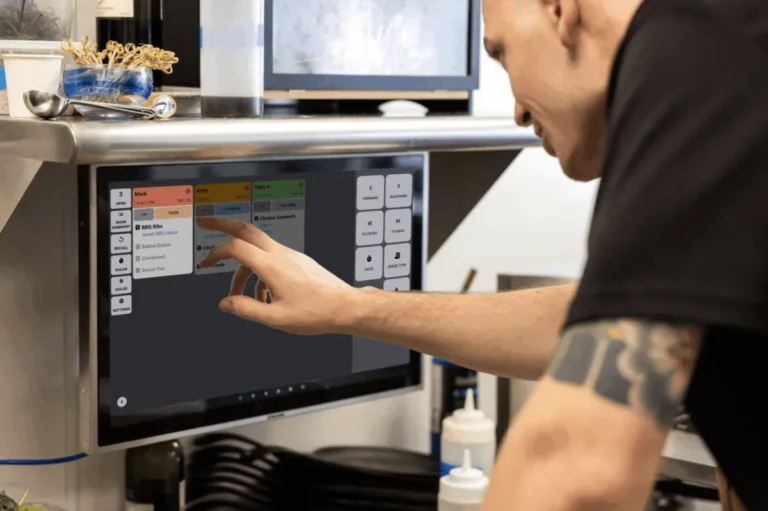
- Seamless integration: Your online ordering system should integrate with your POS, your website, and your kitchen display system (if you have one). The fewer manual steps, the better.
- Customizable menu: You should be able to update your online menu independently of your dine-in menu. For example, you might offer a different selection of items for delivery or takeout.
- Real-time updates: If an item sells out, it should disappear from the online menu automatically. No more “sorry, we’re out of that” emails after the order is placed.
- Multiple payment options: Credit cards, PayPal, Apple Pay, Google Pay, give your customers as many options as possible. The easier it is to pay, the more likely they are to complete the order.
- Order tracking: Let customers track their order in real time, from preparation to delivery. This reduces anxiety and cuts down on “where’s my food?” calls.
Plugins like WooCommerce with a restaurant add-on or GloriaFood can handle most of these features. If you’re using a third-party delivery service like Uber Eats or DoorDash, make sure their system integrates with your website. Some services offer APIs or plugins that let you display their menu on your site, so customers can order directly from you instead of through a middleman.
I’ll admit, setting up a seamless online ordering system isn’t easy. But once it’s up and running, it’s like having a second kitchen that never sleeps. And in a world where convenience is king, that’s a competitive advantage you can’t afford to ignore.
6. Step 5: Automating Repetitive Tasks (So You Can Focus on the Food)
The Beauty of Automation (When It Works)
Let’s talk about automation. If you’re like most restaurant owners, you’ve got a million things on your plate (pun intended), and the last thing you want to do is spend hours on repetitive tasks like updating your website, sending emails, or posting on social media. Automation is supposed to solve this problem, but it doesn’t always work out that way.
I’ve seen restaurants try to automate everything from menu updates to customer feedback, only to end up with a system that’s more trouble than it’s worth. The key is to automate the right tasks-the ones that are repetitive, time-consuming, and don’t require a human touch. Here are a few tasks that are perfect for automation:
- Email marketing: Use a tool like Mailchimp or Constant Contact to send automated emails for reservations, online orders, or promotions. For example, you can set up a “thank you” email that goes out after a customer makes a reservation, or a “we miss you” email for customers who haven’t visited in a while.
- Social media posting: Tools like Buffer or Hootsuite let you schedule posts in advance, so you can batch your social media work and free up time for other tasks. Just be careful not to over-automate, your social media should still feel personal and authentic.
- Inventory alerts: If you’re using a POS or inventory management system, set up alerts for low-stock items. This way, you’ll know when it’s time to reorder before you run out.
- Customer feedback: Use a plugin like WP Feedback to automate the process of collecting and responding to customer reviews. You can set up automated responses for common issues, like “thank you for your feedback” or “we’re sorry to hear that, here’s a discount on your next visit.”
- Menu updates: As we talked about earlier, you can automate parts of your menu updates by syncing with your POS or using conditional logic to show or hide items.
Where Automation Goes Wrong (And How to Fix It)
Automation isn’t a silver bullet. Done wrong, it can make your restaurant feel impersonal, robotic, or even downright annoying. Here are a few common mistakes and how to avoid them:
- Over-automating customer interactions: There’s a fine line between efficiency and impersonality. If every interaction with your restaurant feels like it’s coming from a bot, customers will notice. Use automation for the basics, but keep a human touch for the things that matter, like handling complaints or special requests.
- Ignoring the data: Automation tools generate a ton of data, but it’s useless if you don’t act on it. Set aside time each week to review your analytics and adjust your strategy as needed.
- Setting and forgetting: Automation isn’t a “set it and forget it” solution. You need to monitor your systems regularly to make sure they’re working as intended. For example, if your automated emails are going to spam, you’ll need to fix that.
- Automating the wrong tasks: Not every task is a good candidate for automation. If a task requires creativity, judgment, or a personal touch, it’s probably not a good fit. For example, you might automate the process of sending a reservation confirmation, but you wouldn’t want to automate the process of handling a customer complaint.
I’m torn between two schools of thought here. On one hand, automation can save you time and reduce errors. On the other hand, it can make your restaurant feel less personal. Ultimately, I think the key is to use automation as a tool, not a replacement for human interaction. Use it to handle the repetitive tasks, so you can focus on the things that really matter, like creating great food and providing amazing service.
7. Step 6: Securing Your Admin Without Making It a Fortress
Why Security Matters (Even for Small Restaurants)
Let’s talk about security. If you’re like most restaurant owners, you probably think of your website as a low-priority target for hackers. After all, you’re not a bank or a government agency, what could they possibly want with your site? The answer might surprise you.
Hackers target small businesses for a few reasons:
- Customer data: Even if you’re not storing credit card information, your website might collect customer names, email addresses, and phone numbers. This data can be sold on the dark web or used for phishing attacks.
- Online orders: If you’re processing online orders, hackers might try to intercept payment information or redirect customers to a fake checkout page.
- SEO spam: Hackers often inject spammy links into websites to boost their own search rankings. This can tank your SEO and damage your reputation.
- Ransomware: Some hackers will lock you out of your website and demand a ransom to restore access. This can be devastating for a small business.
I’ll be honest: security isn’t the most exciting topic. But it’s one of those things that you don’t think about until it’s too late. The good news is that securing your WordPress admin doesn’t have to be complicated. Here are a few simple steps you can take to protect your site:
Simple Security Tweaks That Actually Work
First, let’s talk about passwords. If your admin password is “password123” or “restaurant,” you’re basically leaving the back door unlocked. Use a strong, unique password for your WordPress admin, and enable two-factor authentication (2FA). Plugins like Wordfence or Google Authenticator can help with this.
Next, limit the number of users who have admin access. The more people who can log in, the more vulnerable your site is. Only give admin access to people who absolutely need it. For everyone else, use a lower-level role like “Editor” or “Author.”
Here are a few more security tweaks to consider:
- Update regularly: WordPress, plugins, and themes are constantly being updated to fix security vulnerabilities. Make sure you’re running the latest versions of everything.
- Use a security plugin: Plugins like Wordfence or Sucuri can scan your site for malware, block brute-force attacks, and monitor for suspicious activity.
- Disable file editing: By default, WordPress lets admins edit theme and plugin files directly from the dashboard. This is a security risk, so it’s a good idea to disable it. You can do this by adding a line of code to your wp-config.php file.
- Limit login attempts: Brute-force attacks are a common way for hackers to gain access to WordPress sites. Plugins like Limit Login Attempts Reloaded can block IP addresses after a certain number of failed login attempts.
- Use HTTPS: HTTPS encrypts the data sent between your website and your visitors, making it harder for hackers to intercept. Most hosting providers offer free SSL certificates, so there’s no excuse not to use HTTPS.
I know what you’re thinking: “This all sounds great, but I don’t have time to become a security expert.” And you’re right, you don’t. The key is to focus on the basics and build from there. Start with strong passwords and 2FA, then add more layers of security as you go. It’s like locking the doors and windows of your restaurant. You don’t need a moat and a drawbridge, but you do need to make sure the basics are covered.
8. Step 7: Training Your Team (Without Putting Them to Sleep)
Why Training Matters (And How to Make It Stick)
You can have the most beautifully customized WordPress admin in the world, but if your team doesn’t know how to use it, it’s about as useful as a fancy espresso machine in the hands of someone who only drinks instant coffee. Training is the bridge between a great system and a great execution.
I’ve seen too many restaurants invest time and money into customizing their admin, only to skip the training part. The result? Staff who are frustrated, mistakes that could have been avoided, and a system that’s not being used to its full potential. Here’s how to make sure that doesn’t happen to you:
How to Train Your Team Without Losing Their Attention
First, let’s talk about what not to do. Don’t sit your team down for a two-hour lecture on WordPress. Don’t hand them a 50-page manual and expect them to read it. And don’t assume that because one person on your team is tech-savvy, everyone else will pick it up by osmosis. Training should be hands-on, engaging, and tailored to your team’s needs.
Here’s a step-by-step approach to training your team:
- Start with the basics: Before diving into the specifics of your custom admin, make sure everyone understands the fundamentals of WordPress. What’s the difference between a page and a post? How do you log in? What’s the dashboard? Keep it simple and focus on what’s relevant to their role.
- Break it down by role: Not everyone on your team needs to know how to do everything. Your hostess might only need to know how to update reservations, while your manager might need to handle menu updates and customer feedback. Tailor the training to each person’s responsibilities.
- Use real-world examples: Instead of abstract explanations, use examples from your restaurant. For example, “Let’s say a customer calls and wants to change their reservation from 7:00 to 7:30. Here’s how you’d do that in the admin.”
- Make it hands-on: People learn by doing, so have your team practice using the admin during the training. Give them scenarios to work through, like updating the specials or adding a new menu item.
- Create cheat sheets: Even the best-trained staff will forget things. Create simple, one-page cheat sheets for common tasks, like “How to Update the Menu” or “How to View Today’s Reservations.” Keep them handy near the computer where your team logs in.
- Offer ongoing support: Training shouldn’t be a one-and-done thing. Make sure your team knows who to ask if they have questions or run into issues. Consider setting up a quick reference guide or a shared document where they can find answers to common questions.
- Gamify it: If your team is competitive, turn training into a game. For example, you could create a quiz on the admin features and offer a prize to the person who gets the most answers right. Or you could challenge them to complete a task in the admin as quickly as possible.
Maybe I should clarify: training isn’t just about teaching your team how to use the admin, it’s about building their confidence. If they feel overwhelmed or frustrated, they’re less likely to use the system effectively. The goal is to make them feel like the admin is a tool that works for them, not against them.
9. Step 8: Testing and Refining Your Custom Admin
Why Testing Is Just as Important as Customization
You’ve spent hours (or maybe even days) customizing your WordPress admin, and now it’s finally time to put it to the test. But here’s the thing: o system is perfect right out of the gate. Testing and refining your admin is just as important as the customization itself. Think of it like recipe development. You wouldn’t serve a new dish to customers without tasting it first, right? The same goes for your admin.
I’ll admit, testing isn’t the most exciting part of the process. It’s tempting to set up your admin, pat yourself on the back, and call it a day. But if you skip this step, you’re setting yourself up for frustration down the road. A little testing now can save you a lot of headaches later.
How to Test Your Admin Like a Pro
So, how do you test your admin? Start by putting yourself in your team’s shoes. Log in as a user with a lower-level role (like “Editor” or “Author”) and try to complete the tasks they’d need to do. Can you update the menu easily? Can you view today’s reservations? Can you respond to customer feedback? If anything feels clunky or confusing, make a note of it and adjust as needed.
Here’s a checklist to guide your testing:
- Navigation: Is it easy to find what you need? Are the most important tasks (like updating the menu or viewing reservations) front and center?
- Speed: Does the admin feel fast and responsive, or is it sluggish? If it’s slow, it might be time to optimize your site or upgrade your hosting.
- Mobile-friendliness: Can you use the admin on a phone or tablet? More and more restaurant staff are using mobile devices to update the website, so this is important.
- Error handling: What happens if you make a mistake? For example, if you accidentally delete a menu item, is there an easy way to restore it? If not, you might need to add a backup system or a trash feature.
- Integration: Do all your plugins and tools work together seamlessly? For example, if you’re using a reservation plugin and an online ordering system, do they play nicely with each other?
- User feedback: Ask your team to test the admin and give you feedback. They might notice things you missed, like a confusing label or a missing feature.
Once you’ve identified any issues, it’s time to refine your admin. This might mean tweaking the layout, adding or removing widgets, or adjusting the permissions for certain roles. Don’t be afraid to make changes-the goal is to create a system that works for your team, not the other way around.
I’m torn between two approaches here. On one hand, you could test everything thoroughly before rolling out the new admin to your team. On the other hand, you could roll it out in phases, testing and refining as you go. Ultimately, I think the best approach is a hybrid of the two. Test as much as you can upfront, but be prepared to make adjustments based on real-world use.
10. Step 9: Maintaining Your Custom Admin (Without Losing Your Mind)
Why Maintenance Is the Key to Long-Term Success
You’ve customized your WordPress admin, trained your team, and tested everything to make sure it works. Now what? Maintenance. I know, it’s not the most glamorous part of the process, but it’s crucial if you want your admin to stay fast, secure, and user-friendly.
Think of your admin like your restaurant’s kitchen. You wouldn’t deep-clean it once and then never touch it again, right? The same goes for your admin. Regular maintenance keeps everything running smoothly and prevents small issues from turning into big problems.
I’ll be honest: maintenance isn’t the most exciting topic. But it’s one of those things that you don’t think about until something goes wrong. And when something does go wrong, it’s usually at the worst possible time, like during a dinner rush or a big event. So, let’s talk about how to keep your admin in tip-top shape without losing your mind.
How to Maintain Your Admin Without Spending Hours on It
First, let’s talk about what maintenance actually entails. Here are the key tasks you should be doing on a regular basis:
- Update WordPress, plugins, and themes: This is the most important maintenance task. Updates often include security patches, bug fixes, and new features. Set aside time each month to check for updates and install them.
- Back up your site: Backups are your safety net. If something goes wrong, you can restore your site to a previous version. Use a plugin like UpdraftPlus or BackupBuddy to automate your backups, and store them in a secure location like Google Drive or Dropbox.
- Monitor performance: A slow admin can be frustrating for your team. Use a tool like Google PageSpeed Insights or GTmetrix to monitor your site’s performance and identify any issues.
- Check for broken links: Broken links can hurt your SEO and frustrate your visitors. Use a plugin like Broken Link Checker to scan your site for broken links and fix them.
- Review user roles and permissions: Over time, your team might change, and so might their responsibilities. Review your user roles and permissions regularly to make sure everyone has the access they need (and nothing more).
- Clean up your database: Over time, your WordPress database can get cluttered with unnecessary data, like spam comments, post revisions, and trashed items. Use a plugin like WP-Optimize to clean up your database and keep it running smoothly.
Now, I know what you’re thinking: “This sounds like a lot of work.” And you’re not wrong. But here’s the thing: most of these tasks can be automated. For example, you can set up automatic updates for WordPress and plugins, schedule regular backups, and use a plugin to clean up your database automatically. The key is to set it up once and then forget about it (until something goes wrong, of course).
Maybe I should clarify: maintenance isn’t about doing everything perfectly. It’s about staying on top of the basics so your admin stays fast, secure, and user-friendly. If you can do that, you’re already ahead of 90% of restaurant owners.
Putting It All Together: Your Restaurant’s Admin, Simplified
Alright, let’s take a step back and look at the big picture. We’ve covered a lot of ground in this guide, from decluttering the dashboard to automating repetitive tasks. The goal isn’t to create a “perfect” admin, it’s to create one that works for you and your team.
Here’s a quick recap of what we’ve talked about:
- Declutter the dashboard: Remove the widgets and menu items you don’t need, and focus on what matters.
- Add restaurant-specific widgets: Turn your dashboard into a command center with widgets for reservations, online orders, and customer feedback.
- Simplify menu management: Use plugins or automation to make updating your menu as easy as possible.
- Streamline reservations and online orders: Make sure your reservation and online ordering systems are intuitive and user-friendly.
- Automate repetitive tasks: Use automation to handle the tasks that don’t require a human touch, like sending confirmation emails or updating inventory.
- Secure your admin: Protect your site from hackers with strong passwords, 2FA, and regular updates.
- Train your team: Make sure your team knows how to use the admin effectively, and provide ongoing support as needed.
- Test and refine: Put your admin to the test and make adjustments based on real-world use.
- Maintain your admin: Keep your admin running smoothly with regular updates, backups, and performance monitoring.
I’ll be honest: customizing your WordPress admin isn’t a one-time task. It’s an ongoing process of testing, refining, and adapting to your restaurant’s needs. But if you put in the work upfront, you’ll end up with a system that saves you time, reduces errors, and makes your life easier. And in the restaurant business, that’s priceless.
So, where do you go from here? Start small. Pick one or two things from this guide to focus on first, maybe decluttering the dashboard or simplifying menu management. Once you’ve got those down, move on to the next thing. Before you know it, you’ll have a WordPress admin that feels like it was built just for your restaurant.
And hey, if you get stuck or have questions, don’t hesitate to reach out. I’ve been there, and I’m happy to help. After all, we’re all in this together, trying to run a restaurant in a world that’s moving faster than ever. The least we can do is make our websites work for us, not against us.
FAQ
Q: Do I need to know how to code to customize my WordPress admin for my restaurant?
A: Not at all! While some customizations (like creating custom widgets or integrating with a POS system) might require a bit of code, most of the tweaks we’ve talked about can be done with plugins or built-in WordPress features. If you’re not comfortable with code, start with plugins, they’re designed to make customization accessible to everyone. And if you do run into something that requires coding, there are plenty of tutorials and developers who can help.
Q: What’s the best plugin for managing restaurant menus in WordPress?
A: There’s no one-size-fits-all answer here, but a few plugins stand out. Restaurant Menu by MotoPress and Food Menu by WP Darko are both great options for creating beautiful, responsive menus. If you’re looking for something more advanced, WooCommerce with a restaurant add-on can handle online ordering as well. The best plugin for you depends on your specific needs, do you need online ordering? Do you want to sync with your POS? Take some time to research and test a few options before committing.
Q: How can I make sure my WordPress admin stays fast and responsive?
A: A slow admin can be frustrating for your team, so it’s important to keep it running smoothly. Here are a few tips: First, optimize your hosting. If you’re on a shared hosting plan, consider upgrading to a VPS or managed WordPress hosting. Second, limit the number of plugins you use. Each plugin adds overhead, so only use the ones you really need. Third, clean up your database regularly. Use a plugin like WP-Optimize to remove unnecessary data, like spam comments and post revisions. Finally, monitor your site’s performance with a tool like Google PageSpeed Insights and address any issues that come up.
Q: What’s the best way to train my team on the new WordPress admin?
A: Training is all about making your team feel confident and comfortable with the new system. Start by breaking the training down by role-not everyone needs to know how to do everything. Use real-world examples to make the training relevant, and make it hands-on so your team can practice using the admin. Create cheat sheets for common tasks, and offer ongoing support for any questions or issues that come up. And don’t forget to gamify it if your team is competitive, turn training into a game to keep them engaged.
@article{customizing-wordpress-admin-for-restaurant-website-management-a-chefs-guide-to-a-smoother-backend,
    title   = {Customizing WordPress Admin for Restaurant Website Management: A Chef’s Guide to a Smoother Backend},
    author  = {Chef's icon},
    year    = {2026},
    journal = {Chef's Icon},
    url     = {https://chefsicon.com/customizing-wordpress-admin-for-restaurant-website-management/}
}