The Best Fluffy Pancakes recipe you will fall in love with. Full of tips and tricks to help you make the best pancakes.
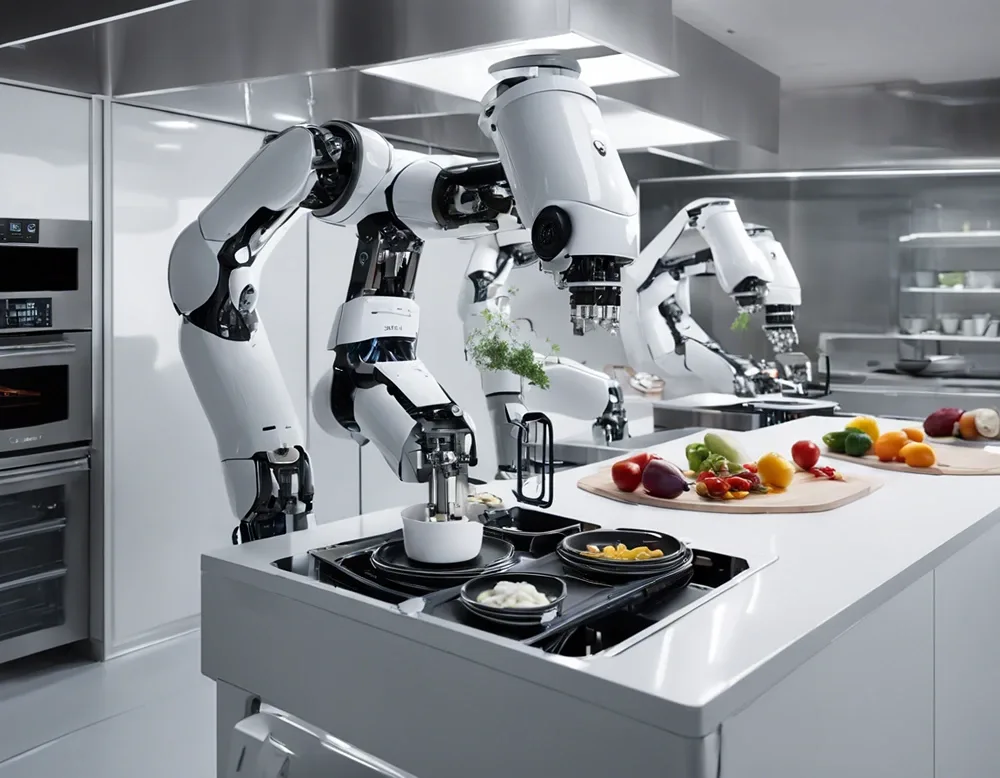
Command Line Automation Scripts for Kitchen Equipment Maintenance: Why Your Knives (and Fryers) Deserve a Tech Upgrade
Let me start with a confession: I’m the kind of guy who once spent an entire afternoon manually logging the temperature of our walk-in freezer on a spreadsheet. Every hour, on the hour, I’d trudge back there with a clipboard, squint at the thermometer, and scribble down the numbers like some kind of culinary accountant. It wasn’t until our head chef, Maria, walked in, took one look at me, and said, “Sammy, you look like you’re auditioning for a role in a 1950s office drama,” that I realized there had to be a better way. That’s when I stumbled into the world of command-line automation scripts for kitchen equipment maintenance-and let me tell you, it’s been a game-changer.
Now, I know what you’re thinking: “Command line? Scripts? Isn’t that stuff for IT guys who wear hoodies and drink energy drinks at 2 AM?” Fair point. But here’s the thing, kitchen equipment maintenance isn’t just about scrubbing grills and sharpening knives anymore. It’s about predictive maintenance, real-time monitoring, and automated logging that saves you time, money, and the headache of unexpected breakdowns. And guess what? You don’t need a computer science degree to make it work for you. If I can do it, someone who once accidentally set a toaster on fire trying to “hack” it into a bagel warmer, you can too.
In this guide, I’m going to walk you through everything I’ve learned about using command-line automation scripts to keep your kitchen running smoother than a well-oiled (literally) deep fryer. We’ll cover why this matters, how to get started, and even some ready-to-use scripts that’ll make your life easier. By the end, you’ll be automating tasks like a pro, freeing up time to focus on what really matters, like perfecting that secret BBQ sauce recipe or finally figuring out why your sous vide machine has a vendetta against you.
So, grab a coffee (or a beer, no judgment), and let’s dive in. And don’t worry, I’ll keep the tech jargon to a minimum. Promise.
Why Bother with Command-Line Automation for Kitchen Equipment?
Before we get into the nitty-gritty, let’s talk about why this even matters. I mean, if it ain’t broke, don’t fix it, right? Well, here’s the thing: your kitchen equipment is already “broke” in ways you don’t even realize. It’s just not screaming at you, yet.
Think about it. How many times has this happened to you?
- Your ice machine conks out during the dinner rush because no one noticed the water filter was clogged.
- Your walk-in freezer’s compressor fails, and suddenly you’re staring at $10,000 worth of spoiled steaks.
- Your combi oven’s error codes start flashing like a Christmas tree, but the manual is buried under a pile of order tickets.
These aren’t just annoyances, they’re profit killers. And here’s the kicker: most of them could’ve been prevented with a little proactive maintenance. That’s where automation comes in. By using command-line scripts, you can:
- Monitor equipment in real-time: Get alerts before something goes wrong, not after.
- Automate routine checks: No more manual temperature logs or filter change reminders.
- Reduce human error: Let’s be honest, we’ve all forgotten to log something at least once.
- Save time and money: Less downtime, fewer emergency repairs, and longer equipment lifespans.
But here’s the part that really sold me: it’s not as complicated as it sounds. You don’t need to be a coding whiz to set this up. In fact, most of the scripts we’ll talk about are just a few lines of code that you can copy, paste, and tweak to fit your needs. And if you’re thinking, “Sammy, I don’t even know what a command line is,” don’t worry, I’ll walk you through that too.
Is this the best approach for every kitchen? Maybe not. If you’re running a tiny food truck with a single griddle and a deep fryer, you might not need this level of automation. But if you’re managing a restaurant, catering business, or even a mid-sized commercial kitchen, command-line automation can be a lifesaver. And honestly, even if you’re just curious about how to make your life easier, it’s worth exploring.
So, let’s start with the basics.
The Command Line: Your New Best Friend (Even If It Doesn’t Feel Like It Yet)
Okay, let’s address the elephant in the room: the command line. If you’ve never used it before, it can feel a little intimidating. It’s that black box with white text that looks like it belongs in a hacker movie, not a kitchen. But here’s the thing, it’s just a tool. And like any tool, once you get the hang of it, it’s incredibly powerful.
First, what is the command line? In simple terms, it’s a way to interact with your computer using text commands instead of clicking around with a mouse. Think of it like giving your computer direct instructions, like telling your sous chef exactly how you want the mise en place prepped. No ambiguity, no confusion, just clear, precise commands.
Now, you might be wondering, “Why would I use this instead of a fancy app or software?” Great question. Here’s why the command line is perfect for kitchen equipment maintenance:
- Lightweight: No need to install bulky software. The command line is already on your computer.
- Fast: You can execute tasks in seconds without navigating through menus.
- Scriptable: You can write scripts (we’ll get to those) to automate repetitive tasks.
- Flexible: You can combine commands to do almost anything you need.
- Free: No subscriptions, no licenses, just you and your computer.
But I get it, it’s still a little scary. When I first opened the command line, I felt like I was staring at a foreign language. But here’s the secret: you don’t need to know everything. You just need to know enough to get the job done. And that’s what we’re going to focus on.
Let’s start with the absolute basics. How do you even open the command line?
Opening the Command Line
This part’s easy, I promise.
- On Windows: Press
Win + R, typecmd, and hit Enter. Boom, you’re in. - On Mac: Open Terminal (you can find it in Applications > Utilities, or just search for it in Spotlight with
Cmd + Space). - On Linux: If you’re using Linux, you probably already know how to open the terminal. If not, you’re in the wrong guide, just kidding! It’s usually
Ctrl + Alt + T.
Once you’ve got it open, you’ll see a blinking cursor. That’s your computer saying, “What do you want me to do?” And that’s where the magic happens.
Basic Commands to Get You Started
Before we dive into scripts, let’s cover a few basic commands. These are the building blocks of everything we’ll do later. Don’t worry, I’ll keep it simple.
cd: Stands for change directory. This is how you navigate to different folders on your computer. For example,cd Documentstakes you to your Documents folder.ls(Mac/Linux) ordir(Windows): Lists the files and folders in your current directory. Think of it like opening a folder and seeing what’s inside.mkdir: Stands for make directory. This creates a new folder. For example,mkdir KitchenLogscreates a folder called KitchenLogs.echo: Prints text to the screen. For example,echo "Hello, kitchen!"will display Hello, kitchen! in the command line.touch(Mac/Linux) ortype nul > filename.txt(Windows): Creates a new file. For example,touch temp_log.txtcreates a file called temp_log.txt.
These might seem basic, but they’re the foundation of everything we’ll do. And honestly, even these simple commands can be useful. For example, you could use echo to quickly jot down a note about a piece of equipment that’s acting up, or mkdir to organize your maintenance logs.
Now, let’s talk about scripts.
What Are Automation Scripts, and Why Should You Care?
Alright, so we’ve covered the command line. Now, let’s talk about automation scripts. What are they? In simple terms, a script is just a file that contains a series of commands that your computer can execute automatically. Think of it like a recipe for your computer, you write down the steps, and it follows them without you having to do anything.
Why is this useful for kitchen equipment maintenance? Because there are a ton of repetitive tasks that you (or your staff) have to do every day, week, or month. Things like:
- Logging temperatures of refrigerators and freezers.
- Checking the status of ice machines, dishwashers, or ovens.
- Scheduling filter changes or deep cleans.
- Backing up equipment logs or maintenance records.
Doing these manually is tedious, time-consuming, and, let’s be honest, boring. But with a script, you can automate the whole process. Set it up once, and it’ll run on its own, freeing you up to focus on more important things (like taste-testing that new chili recipe).
But here’s where I’m torn. On one hand, scripts are incredibly powerful. They can save you time, reduce errors, and even help you catch problems before they become disasters. On the other hand, they can feel a little overwhelming if you’re not used to them. So, let’s break it down into manageable pieces.
Types of Scripts You’ll Use
Not all scripts are created equal. Depending on what you’re trying to do, you’ll use different types of scripts. Here are the most common ones for kitchen equipment maintenance:
- Bash Scripts: These are the most common type of script for Mac and Linux. They’re simple, powerful, and perfect for automating tasks like logging temperatures or checking equipment status.
- Batch Scripts: These are the Windows equivalent of Bash scripts. They’re a little clunkier, but they get the job done.
- Python Scripts: Python is a programming language that’s great for more complex tasks. It’s a little more advanced, but it’s also more flexible. If you’re feeling ambitious, Python is a great next step after you’ve mastered Bash or Batch scripts.
For now, we’ll focus on Bash and Batch scripts, since they’re the easiest to get started with. But if you’re curious about Python, I’ll point you in the right direction later.
How Scripts Work
At their core, scripts are just text files with a series of commands. You write the commands, save the file with the right extension (like .sh for Bash or .bat for Batch), and then run it. That’s it.
For example, let’s say you want to create a script that logs the temperature of your walk-in freezer every hour. You could write a script that:
- Reads the temperature from a sensor (we’ll talk about how to do this later).
- Writes the temperature to a log file.
- Repeats this process every hour.
Once you’ve written the script, you can set it up to run automatically using something called a cron job (on Mac/Linux) or Task Scheduler (on Windows). This way, you don’t even have to think about it, the script just runs in the background, doing its thing.
Sounds good, right? But how do you actually write one of these scripts? Let’s find out.
Writing Your First Script: A Simple Temperature Logger
Alright, let’s get our hands dirty. We’re going to write a simple script that logs the temperature of your walk-in freezer (or any other piece of equipment) to a file. This is a great first script because it’s simple, useful, and easy to understand.
First, let’s talk about what you’ll need. To make this work, you’ll need a way to read the temperature of your equipment. This could be:
- A digital thermometer with a USB or Bluetooth connection.
- A smart sensor that connects to your network (like a Raspberry Pi with a temperature sensor).
- An API from your equipment manufacturer (if your equipment supports it).
For this example, let’s assume you’re using a Raspberry Pi with a temperature sensor. The Raspberry Pi is a tiny, affordable computer that’s perfect for this kind of thing. If you’re not using a Raspberry Pi, don’t worry, you can adapt this script to work with whatever temperature sensor you have.
Setting Up the Raspberry Pi
If you’re using a Raspberry Pi, here’s how to set it up:
- Connect the temperature sensor to the Raspberry Pi. There are plenty of tutorials online for this, just search for “Raspberry Pi temperature sensor setup.”
- Install the necessary software. You’ll need Python and a library called Adafruit_DHT (if you’re using a DHT11 or DHT22 sensor). You can install it with this command:
pip install Adafruit_DHT- Test the sensor to make sure it’s working. You can do this with a simple Python script:
import Adafruit_DHT sensor = Adafruit_DHT.DHT22 pin = 4 # Change this to the GPIO pin you're using humidity, temperature = Adafruit_DHT.read_retry(sensor, pin) if humidity is not None and temperature is not None: print(f"Temp: {temperature:.1f}°C, Humidity: {humidity:.1f}%") else: print("Failed to read from sensor")If this works, you’re ready to move on to the script.
Writing the Bash Script
Now, let’s write the script. We’ll create a Bash script that reads the temperature from the sensor and logs it to a file. Here’s how:
- Open a text editor (like Notepad on Windows or TextEdit on Mac) and create a new file.
- Paste the following code into the file:
#!/bin/bash # Define the log file LOG_FILE="/home/pi/kitchen_logs/temperature_log.txt" # Create the log directory if it doesn't exist mkdir -p "$(dirname "$LOG_FILE")" # Get the current date and time DATE=$(date "+%Y-%m-%d %H:%M:%S") # Read the temperature from the sensor (using the Python script) TEMP=$(python -c "import Adafruit_DHT; sensor = Adafruit_DHT.DHT22; pin = 4; humidity, temperature = Adafruit_DHT.read_retry(sensor, pin); print(temperature)") # Log the temperature if [ -n "$TEMP" ]; then echo "$DATE - Temperature: $TEMP°C" >> "$LOG_FILE" echo "Logged temperature: $TEMP°C" else echo "$DATE - Failed to read temperature" >> "$LOG_FILE" echo "Failed to read temperature" fi- Save the file as
log_temperature.sh. - Make the script executable with this command:
chmod +x log_temperature.sh- Run the script to test it:
./log_temperature.shIf everything works, you should see the temperature logged to the file temperature_log.txt. Congratulations, you’ve just written your first automation script!
Scheduling the Script to Run Automatically
Now, let’s set up the script to run automatically every hour. On Linux (and the Raspberry Pi), you can do this with a cron job. Here’s how:
- Open the crontab file with this command:
crontab -e- Add the following line to the file to run the script every hour:
0 * * * * /home/pi/log_temperature.sh- Save and exit the file. The script will now run every hour, logging the temperature to the file.
And that’s it! You’ve just automated one of the most tedious parts of kitchen equipment maintenance. No more manual logs, no more forgotten checks, just a simple script that does the work for you.
But what if you’re not using a Raspberry Pi? Maybe you’re using a different sensor, or you’re on Windows. Don’t worry, this script is just a starting point. You can adapt it to work with whatever equipment you have.
Adapting Scripts for Different Types of Kitchen Equipment
Not all kitchen equipment is created equal. A walk-in freezer is different from a combi oven, which is different from an ice machine. So, how do you adapt your scripts to work with different types of equipment? Let’s break it down.
Refrigeration Equipment (Walk-ins, Reach-ins, Freezers)
Refrigeration equipment is one of the easiest to automate because it’s all about temperature. Most modern refrigeration units have some way to monitor temperature, whether it’s a built-in sensor or an external one. Here’s how you can adapt the script we wrote earlier:
- Built-in sensors: If your equipment has a built-in temperature sensor, check if it has an API or a way to export data. You might be able to pull the temperature directly from the equipment.
- External sensors: If you’re using an external sensor (like the Raspberry Pi setup we talked about), you can use the same script we wrote earlier.
- Alerts: You can add a line to the script that sends you an alert (via email or text) if the temperature goes outside a safe range. We’ll talk about how to do this later.
Here’s an example of how you might modify the script to include an alert:
#!/bin/bash LOG_FILE="/home/pi/kitchen_logs/temperature_log.txt" ALERT_EMAIL="[email protected]" SAFE_TEMP_MIN=2 # Minimum safe temperature in °C SAFE_TEMP_MAX=8 # Maximum safe temperature in °C mkdir -p "$(dirname "$LOG_FILE")" DATE=$(date "+%Y-%m-%d %H:%M:%S") TEMP=$(python -c "import Adafruit_DHT; sensor = Adafruit_DHT.DHT22; pin = 4; humidity, temperature = Adafruit_DHT.read_retry(sensor, pin); print(temperature)") if [ -n "$TEMP" ]; then echo "$DATE - Temperature: $TEMP°C" >> "$LOG_FILE" # Check if temperature is outside safe range if (( $(echo "$TEMP $SAFE_TEMP_MAX" | bc -l) )); then echo "ALERT: Temperature out of range! Current: $TEMP°C" | mail -s "Temperature Alert" "$ALERT_EMAIL" fi else echo "$DATE - Failed to read temperature" >> "$LOG_FILE" fiCooking Equipment (Ovens, Grills, Fryers)
Cooking equipment is a little trickier because it’s not just about temperature, it’s also about timing, power levels, and sometimes even humidity. But you can still automate a lot of the maintenance tasks. Here’s how:
- Preheat logs: Log when the oven is preheated to ensure it’s ready for service.
- Usage tracking: Track how often the equipment is used to schedule deep cleans or maintenance.
- Error codes: If your equipment has error codes, you can log them and set up alerts for specific codes.
For example, let’s say you want to log when your oven is preheated. You could write a script that:
- Checks the oven’s temperature.
- Logs the time it reaches the target temperature.
- Sends an alert if it takes too long to preheat.
Here’s a rough idea of what that script might look like (assuming you have a way to read the oven’s temperature):
#!/bin/bash LOG_FILE="/home/pi/kitchen_logs/oven_preheat_log.txt" TARGET_TEMP=180 # Target temperature in °C MAX_PREHEAT_TIME=15 # Maximum preheat time in minutes mkdir -p "$(dirname "$LOG_FILE")" DATE=$(date "+%Y-%m-%d %H:%M:%S") START_TIME=$(date +%s) while true; do CURRENT_TEMP=$(python -c "import oven_api; print(oven_api.get_temperature())") if (( $(echo "$CURRENT_TEMP >= $TARGET_TEMP" | bc -l) )); then END_TIME=$(date +%s) PREHEAT_TIME=$(( (END_TIME - START_TIME) / 60 )) echo "$DATE - Oven preheated to $TARGET_TEMP°C in $PREHEAT_TIME minutes" >> "$LOG_FILE" if [ "$PREHEAT_TIME" -gt "$MAX_PREHEAT_TIME" ]; then echo "ALERT: Oven took too long to preheat! Time: $PREHEAT_TIME minutes" | mail -s "Oven Preheat Alert" "[email protected]" fi break fi sleep 60 # Check every minute # Check if it's been too long CURRENT_TIME=$(date +%s) ELAPSED_TIME=$(( (CURRENT_TIME - START_TIME) / 60 )) if [ "$ELAPSED_TIME" -gt "$MAX_PREHEAT_TIME" ]; then echo "$DATE - Oven failed to preheat within $MAX_PREHEAT_TIME minutes" >> "$LOG_FILE" echo "ALERT: Oven failed to preheat!" | mail -s "Oven Preheat Alert" "[email protected]" break fi doneIce Machines and Dishwashers
Ice machines and dishwashers are a little different because they’re more about water flow, pressure, and cycles than temperature. But you can still automate a lot of the maintenance tasks. For example:
- Cycle tracking: Log how many cycles the machine runs to schedule filter changes or deep cleans.
- Water quality: If you have a water quality sensor, you can log the data and set up alerts for high mineral content or other issues.
- Error codes: Log error codes and set up alerts for specific codes.
Here’s an example script for tracking ice machine cycles:
#!/bin/bash LOG_FILE="/home/pi/kitchen_logs/ice_machine_log.txt" CYCLE_COUNT_FILE="/home/pi/kitchen_logs/ice_machine_cycles.txt" MAX_CYCLES=1000 # Maximum cycles before maintenance ALERT_EMAIL="[email protected]" mkdir -p "$(dirname "$LOG_FILE")" DATE=$(date "+%Y-%m-%d %H:%M:%S") # Read the current cycle count if [ -f "$CYCLE_COUNT_FILE" ]; then CYCLE_COUNT=$(cat "$CYCLE_COUNT_FILE") else CYCLE_COUNT=0 fi # Increment the cycle count CYCLE_COUNT=$((CYCLE_COUNT + 1)) # Log the cycle echo "$DATE - Cycle $CYCLE_COUNT" >> "$LOG_FILE" # Save the cycle count echo "$CYCLE_COUNT" > "$CYCLE_COUNT_FILE" # Check if maintenance is needed if [ "$CYCLE_COUNT" -ge "$MAX_CYCLES" ]; then echo "ALERT: Ice machine needs maintenance! Cycles: $CYCLE_COUNT" | mail -s "Ice Machine Maintenance Alert" "$ALERT_EMAIL" fiThis script logs each cycle of the ice machine and sends an alert when it’s time for maintenance. You can adapt it to work with dishwashers or other equipment that runs in cycles.
Ventilation Systems
Ventilation systems are all about airflow, pressure, and sometimes temperature. You can automate tasks like:
- Filter monitoring: Track when filters need to be changed based on usage or pressure readings.
- Airflow logs: Log airflow rates to ensure the system is working properly.
- Error codes: Log error codes and set up alerts for specific issues.
Here’s an example script for monitoring ventilation system filters:
#!/bin/bash LOG_FILE="/home/pi/kitchen_logs/ventilation_log.txt" FILTER_PRESSURE_FILE="/home/pi/kitchen_logs/filter_pressure.txt" MAX_PRESSURE=200 # Maximum pressure before filter change (in Pa) ALERT_EMAIL="[email protected]" mkdir -p "$(dirname "$LOG_FILE")" DATE=$(date "+%Y-%m-%d %H:%M:%S") # Read the current pressure CURRENT_PRESSURE=$(python -c "import ventilation_api; print(ventilation_api.get_pressure())") # Log the pressure echo "$DATE - Filter pressure: $CURRENT_PRESSURE Pa" >> "$LOG_FILE" # Check if filter needs to be changed if (( $(echo "$CURRENT_PRESSURE > $MAX_PRESSURE" | bc -l) )); then echo "ALERT: Ventilation filter needs to be changed! Pressure: $CURRENT_PRESSURE Pa" | mail -s "Ventilation Filter Alert" "$ALERT_EMAIL" fiThis script logs the filter pressure and sends an alert when it’s time to change the filter. You can adapt it to work with other ventilation system metrics.
So, now you’ve got scripts for a few different types of equipment. But what if you want to take it to the next level? Let’s talk about some advanced techniques.
Advanced Techniques: Taking Your Scripts to the Next Level
Alright, so you’ve got the basics down. You’ve written a few scripts, you’re logging temperatures, and you’re feeling pretty good about yourself. But what if I told you there’s a whole world of advanced techniques that can make your scripts even more powerful? Let’s dive in.
Sending Alerts via Email or Text
One of the most useful things you can do with your scripts is set up automated alerts. This way, if something goes wrong, you’ll know about it right away, no more surprises during the dinner rush.
We touched on this earlier, but let’s go into more detail. There are a few ways to send alerts:
- Email: This is the easiest option. Most command-line tools (like
mailon Linux) can send emails with just a few lines of code. - Text messages: If you want to get alerts on your phone, you can use a service like Twilio or an email-to-SMS gateway.
- Push notifications: If you’re using a smartphone, you can send push notifications using services like Pushover or IFTTT.
Let’s start with email. On Linux, you can use the mail command to send emails. Here’s how to set it up:
- Install the
mailutilspackage (on Ubuntu/Debian):
sudo apt-get install mailutils- Configure your email settings. This part can be a little tricky, depending on your email provider. If you’re using Gmail, you’ll need to set up an App Password (since Gmail no longer allows less secure apps to send emails).
- Test the
mailcommand:
echo "This is a test email" | mail -s "Test Subject" "[email protected]"If this works, you can add email alerts to any of your scripts. For example, here’s how you might modify the temperature logger script to send an email alert if the temperature is too high:
#!/bin/bash LOG_FILE="/home/pi/kitchen_logs/temperature_log.txt" ALERT_EMAIL="[email protected]" SAFE_TEMP_MAX=8 # Maximum safe temperature in °C mkdir -p "$(dirname "$LOG_FILE")" DATE=$(date "+%Y-%m-%d %H:%M:%S") TEMP=$(python -c "import Adafruit_DHT; sensor = Adafruit_DHT.DHT22; pin = 4; humidity, temperature = Adafruit_DHT.read_retry(sensor, pin); print(temperature)") if [ -n "$TEMP" ]; then echo "$DATE - Temperature: $TEMP°C" >> "$LOG_FILE" if (( $(echo "$TEMP > $SAFE_TEMP_MAX" | bc -l) )); then echo "ALERT: Temperature is too high! Current: $TEMP°C" | mail -s "Temperature Alert" "$ALERT_EMAIL" fi else echo "$DATE - Failed to read temperature" >> "$LOG_FILE" fiIf you want to send text messages, you can use a service like Twilio. Here’s a quick example of how to send a text message using Twilio’s API:
#!/bin/bash # Twilio API credentials ACCOUNT_SID="your_account_sid" AUTH_TOKEN="your_auth_token" FROM_NUMBER="+1234567890" # Your Twilio number TO_NUMBER="+1987654321" # Your phone number # Message to send MESSAGE="ALERT: Temperature is too high! Current: $TEMP°C" # Send the text message curl -X POST "https://api.twilio.com/2010-04-01/Accounts/$ACCOUNT_SID/Messages.json" --data-urlencode "Body=$MESSAGE" --data-urlencode "From=$FROM_NUMBER" --data-urlencode "To=$TO_NUMBER" -u "$ACCOUNT_SID:$AUTH_TOKEN"This is a little more advanced, but it’s a great way to get alerts on your phone.
Logging Data to a Database
So far, we’ve been logging data to text files. That’s fine for simple tasks, but if you want to do more advanced analysis, you might want to log your data to a database. This way, you can easily query the data, create reports, and even visualize it with tools like Grafana.
There are a few different databases you can use, but one of the simplest is SQLite. It’s lightweight, easy to set up, and doesn’t require a separate server. Here’s how to modify the temperature logger script to log data to an SQLite database:
#!/bin/bash # Define the database file DB_FILE="/home/pi/kitchen_logs/kitchen_data.db" # Create the database and table if they don't exist sqlite3 "$DB_FILE" "CREATE TABLE IF NOT EXISTS temperature_logs (timestamp DATETIME, temperature REAL);" # Get the current date and time DATE=$(date "+%Y-%m-%d %H:%M:%S") # Read the temperature from the sensor TEMP=$(python -c "import Adafruit_DHT; sensor = Adafruit_DHT.DHT22; pin = 4; humidity, temperature = Adafruit_DHT.read_retry(sensor, pin); print(temperature)") # Log the temperature to the database if [ -n "$TEMP" ]; then sqlite3 "$DB_FILE" "INSERT INTO temperature_logs (timestamp, temperature) VALUES ('$DATE', $TEMP);" echo "Logged temperature: $TEMP°C" else echo "Failed to read temperature" fiNow, you can query the database to see the temperature logs. For example, to see all the logs, you can run:
sqlite3 "/home/pi/kitchen_logs/kitchen_data.db" "SELECT * FROM temperature_logs;"Or, to see the average temperature over the last 24 hours:
sqlite3 "/home/pi/kitchen_logs/kitchen_data.db" "SELECT AVG(temperature) FROM temperature_logs WHERE timestamp >= datetime('now', '-24 hours');"This is just the tip of the iceberg. Once you’ve got your data in a database, you can do all sorts of things with it, like creating dashboards, generating reports, or even training machine learning models to predict when equipment might fail. But that’s a topic for another day.
Creating Dashboards with Grafana
Speaking of dashboards, let’s talk about Grafana. Grafana is a tool that lets you create beautiful, interactive dashboards from your data. It’s perfect for visualizing things like temperature logs, equipment usage, or maintenance schedules.
Here’s how to set it up:
- Install Grafana on your Raspberry Pi (or another computer):
sudo apt-get install -y adduser libfontconfig1 wget https://dl.grafana.com/oss/release/grafana_7.5.7_armhf.deb sudo dpkg -i grafana_7.5.7_armhf.deb- Start the Grafana server:
sudo systemctl start grafana-server- Open Grafana in your web browser by navigating to
http://your_raspberry_pi_ip:3000. The default username and password areadminandadmin. - Add your SQLite database as a data source:
- Click Configuration > Data Sources.
- Click Add data source and select SQLite.
- Enter the path to your database file (e.g.,
/home/pi/kitchen_logs/kitchen_data.db). - Click Save & Test.
- Create a dashboard:
- Click Create > Dashboard.
- Click Add new panel.
- In the query editor, write a query to fetch your data. For example, to fetch temperature logs:
SELECT timestamp, temperature FROM temperature_logs ORDER BY timestamp- Customize the panel (e.g., choose a line graph for temperature over time).
- Save the dashboard.
And that’s it! You’ve got a beautiful dashboard that shows your temperature logs in real-time. You can add more panels for other metrics, like equipment usage or maintenance schedules.
Integrating with Smart Kitchen Equipment
If you’re using smart kitchen equipment, you can take your automation to the next level by integrating your scripts with the equipment’s API. Many modern pieces of equipment (like combi ovens, sous vide machines, or even refrigerators) have APIs that let you control them remotely or pull data from them.
For example, let’s say you have a smart combi oven that has an API. You could write a script that:
- Pulls the oven’s current temperature and logs it to a database.
- Checks for error codes and sends an alert if something goes wrong.
- Automatically preheats the oven at a specific time.
Here’s an example of what that script might look like (assuming the oven’s API is accessible via HTTP):
#!/bin/bash # Oven API credentials OVEN_IP="192.168.1.100" OVEN_API_KEY="your_api_key" # Database file DB_FILE="/home/pi/kitchen_logs/kitchen_data.db" # Create the database and table if they don't exist sqlite3 "$DB_FILE" "CREATE TABLE IF NOT EXISTS oven_logs (timestamp DATETIME, temperature REAL, error_code TEXT);" # Get the current date and time DATE=$(date "+%Y-%m-%d %H:%M:%S") # Fetch the oven's status from the API OVEN_STATUS=$(curl -s "http://$OVEN_IP/api/status?api_key=$OVEN_API_KEY") TEMP=$(echo "$OVEN_STATUS" | jq -r '.temperature') ERROR_CODE=$(echo "$OVEN_STATUS" | jq -r '.error_code') # Log the data to the database sqlite3 "$DB_FILE" "INSERT INTO oven_logs (timestamp, temperature, error_code) VALUES ('$DATE', $TEMP, '$ERROR_CODE');" # Check for errors if [ "$ERROR_CODE" != "null" ]; then echo "ALERT: Oven error code: $ERROR_CODE" | mail -s "Oven Error Alert" "[email protected]" fiThis script pulls the oven’s status from its API, logs the data to a database, and sends an alert if there’s an error code. You can adapt it to work with any smart equipment that has an API.
But what if your equipment doesn’t have an API? Don’t worry, there are still ways to automate it. For example, you could use a USB relay to turn equipment on or off, or a serial connection to read data from older equipment. It’s a little more advanced, but it’s doable.
Common Pitfalls and How to Avoid Them
Alright, so you’re ready to dive in. You’ve got your scripts written, your sensors set up, and you’re feeling like a kitchen automation genius. But before you get too ahead of yourself, let’s talk about some common pitfalls and how to avoid them. Trust me, I’ve made most of these mistakes so you don’t have to.
Pitfall #1: Overcomplicating Things
This is the big one. When I first started with automation, I wanted to do everything. I wanted to log temperatures, track equipment usage, monitor energy consumption, predict failures, you name it. And you know what happened? I ended up with a mess of scripts that were half-finished, buggy, and impossible to maintain.
Here’s the thing: start small. Pick one thing, like logging the temperature of your walk-in freezer, and get that working perfectly. Then, once you’re comfortable, you can add more features. Don’t try to boil the ocean (pun intended).
For example, instead of trying to write a script that does everything, start with something simple like this:
#!/bin/bash echo "$(date "+%Y-%m-%d %H:%M:%S") - Walk-in freezer temperature: $(python -c "import Adafruit_DHT; sensor = Adafruit_DHT.DHT22; pin = 4; humidity, temperature = Adafruit_DHT.read_retry(sensor, pin); print(temperature)")°C" >> /home/pi/kitchen_logs/freezer_temp.txtThat’s it. One line of code that logs the temperature to a file. Once you’ve got that working, you can add more features, like alerts, databases, or dashboards.
Pitfall #2: Not Testing Your Scripts
This is another big one. I can’t tell you how many times I’ve written a script, set it up to run automatically, and then forgotten about it, only to find out later that it stopped working weeks ago because of a tiny bug.
Here’s the rule: always test your scripts. Run them manually a few times to make sure they work. Then, set them up to run automatically and check the logs to make sure they’re still working. And finally, set up alerts (like we talked about earlier) so you know if something goes wrong.
For example, before you set up a cron job to run your script every hour, test it manually a few times:
./log_temperature.sh cat /home/pi/kitchen_logs/temperature_log.txtIf it works, great! If not, you’ll catch the bug before it becomes a problem.
Pitfall #3: Ignoring Security
This is a big one, especially if you’re working with smart equipment or APIs. If you’re not careful, you could accidentally expose your kitchen’s network to hackers, or worse, give someone unauthorized access to your equipment.
Here are a few security tips to keep in mind:
- Use strong passwords: If your equipment or API requires a password, make sure it’s strong and unique. Don’t use
password123oradmin. - Don’t hardcode credentials: Avoid putting passwords or API keys directly in your scripts. Instead, use environment variables or configuration files that aren’t checked into version control.
- Keep your software up to date: Make sure your operating system, scripts, and any tools you’re using are up to date with the latest security patches.
- Use a firewall: If you’re running scripts on a Raspberry Pi or another computer, make sure it’s behind a firewall and only accessible from your kitchen’s network.
For example, instead of hardcoding your API key in a script like this:
#!/bin/bash OVEN_API_KEY="your_api_key" # ... rest of the scriptYou can store the API key in an environment variable and access it like this:
#!/bin/bash OVEN_API_KEY="$OVEN_API_KEY" # ... rest of the scriptThen, set the environment variable in your .bashrc or .bash_profile file:
export OVEN_API_KEY="your_api_key"This way, your API key isn’t exposed in the script itself.
Pitfall #4: Not Backing Up Your Scripts
This is a lesson I learned the hard way. A few months ago, I had a Raspberry Pi that was running all my kitchen automation scripts. It was working great, until one day, the SD card corrupted, and I lost everything. All my scripts, all my logs, all my dashboards, gone.
Don’t make the same mistake. Back up your scripts. Here are a few ways to do it:
- Version control: Use a tool like Git to keep track of changes to your scripts. This way, you can always roll back to a previous version if something goes wrong.
- Cloud storage: Store your scripts in a cloud service like Google Drive, Dropbox, or GitHub. This way, even if your computer dies, you won’t lose your scripts.
- Regular backups: Set up a script that automatically backs up your scripts and logs to an external drive or another computer.
For example, here’s a simple script that backs up your kitchen logs to a cloud storage service (like Dropbox):
#!/bin/bash # Define the source and destination SOURCE="/home/pi/kitchen_logs/" DESTINATION="/home/pi/Dropbox/kitchen_backups/$(date "+%Y-%m-%d")/" # Create the destination directory mkdir -p "$DESTINATION" # Copy the files cp -r "$SOURCE"* "$DESTINATION" # Print a message echo "Backup completed: $DESTINATION"You can set this up to run automatically every day using a cron job.
Pitfall #5: Not Documenting Your Scripts
This is another one I’m guilty of. When I first started writing scripts, I didn’t bother documenting them. I figured I’d remember what they did. Spoiler alert: I didn’t.
Here’s the thing: scripts are only useful if you can understand them. If you write a script and then forget what it does or how it works, it’s not going to be very helpful. That’s why it’s important to document your scripts, both for yourself and for anyone else who might need to use them.
Here are a few ways to document your scripts:
- Comments: Add comments to your scripts to explain what each part does. For example:
#!/bin/bash # This script logs the temperature of the walk-in freezer every hour # and sends an alert if the temperature is outside the safe range. LOG_FILE="/home/pi/kitchen_logs/temperature_log.txt" ALERT_EMAIL="[email protected]" SAFE_TEMP_MIN=2 # Minimum safe temperature in °C SAFE_TEMP_MAX=8 # Maximum safe temperature in °C # ... rest of the script- README files: Create a
README.mdfile in your scripts directory that explains what each script does, how to use it, and any dependencies it has. - Version control: If you’re using Git, write clear commit messages that explain what changes you made and why.
For example, here’s what a README.md file might look like:
# Kitchen Automation Scripts This repository contains scripts for automating kitchen equipment maintenance. ## Scripts ### log_temperature.sh Logs the temperature of the walk-in freezer every hour and sends an alert if the temperature is outside the safe range. Usage: ``` ./log_temperature.sh ``` Dependencies: - Adafruit_DHT library (for temperature sensor) - mailutils (for email alerts) ### oven_preheat.sh Logs when the oven is preheated and sends an alert if it takes too long. Usage: ``` ./oven_preheat.sh ``` Dependencies: - oven_api (for oven communication) Trust me, future you will thank present you for taking the time to document your scripts.
Putting It All Together: A Complete Automation Workflow
Alright, so you’ve got the basics down. You’ve written a few scripts, you’ve set up some alerts, and you’re feeling pretty good about yourself. But how do you put it all together into a complete automation workflow? Let’s walk through an example.
Let’s say you’re managing a mid-sized commercial kitchen with the following equipment:
- A walk-in freezer.
- A combi oven.
- An ice machine.
- A ventilation system.
Here’s how you might set up an automation workflow for this kitchen:
Step 1: Set Up the Hardware
First, you’ll need to set up the hardware to monitor your equipment. For this example, let’s assume you’re using a Raspberry Pi with the following sensors:
- A DHT22 temperature sensor for the walk-in freezer.
- A USB relay to monitor the combi oven’s power usage.
- A water flow sensor for the ice machine.
- A pressure sensor for the ventilation system.
You’ll also need to connect the Raspberry Pi to your kitchen’s network so it can send alerts and log data.
Step 2: Write the Scripts
Next, you’ll write scripts to monitor each piece of equipment. Here’s what those scripts might look like:
Walk-in Freezer
#!/bin/bash LOG_FILE="/home/pi/kitchen_logs/freezer_temp.txt" ALERT_EMAIL="[email protected]" SAFE_TEMP_MIN=2 SAFE_TEMP_MAX=8 mkdir -p "$(dirname "$LOG_FILE")" DATE=$(date "+%Y-%m-%d %H:%M:%S") TEMP=$(python -c "import Adafruit_DHT; sensor = Adafruit_DHT.DHT22; pin = 4; humidity, temperature = Adafruit_DHT.read_retry(sensor, pin); print(temperature)") if [ -n "$TEMP" ]; then echo "$DATE - Temperature: $TEMP°C" >> "$LOG_FILE" if (( $(echo "$TEMP $SAFE_TEMP_MAX" | bc -l) )); then echo "ALERT: Freezer temperature out of range! Current: $TEMP°C" | mail -s "Freezer Temperature Alert" "$ALERT_EMAIL" fi else echo "$DATE - Failed to read temperature" >> "$LOG_FILE" fiCombi Oven
#!/bin/bash LOG_FILE="/home/pi/kitchen_logs/oven_logs.txt" ALERT_EMAIL="[email protected]" OVEN_IP="192.168.1.100" OVEN_API_KEY="$OVEN_API_KEY" mkdir -p "$(dirname "$LOG_FILE")" DATE=$(date "+%Y-%m-%d %H:%M:%S") OVEN_STATUS=$(curl -s "http://$OVEN_IP/api/status?api_key=$OVEN_API_KEY") TEMP=$(echo "$OVEN_STATUS" | jq -r '.temperature') ERROR_CODE=$(echo "$OVEN_STATUS" | jq -r '.error_code') echo "$DATE - Temperature: $TEMP°C, Error Code: $ERROR_CODE" >> "$LOG_FILE" if [ "$ERROR_CODE" != "null" ]; then echo "ALERT: Oven error code: $ERROR_CODE" | mail -s "Oven Error Alert" "$ALERT_EMAIL" fiIce Machine
#!/bin/bash LOG_FILE="/home/pi/kitchen_logs/ice_machine_logs.txt" CYCLE_COUNT_FILE="/home/pi/kitchen_logs/ice_machine_cycles.txt" MAX_CYCLES=1000 ALERT_EMAIL="[email protected]" mkdir -p "$(dirname "$LOG_FILE")" DATE=$(date "+%Y-%m-%d %H:%M:%S") if [ -f "$CYCLE_COUNT_FILE" ]; then CYCLE_COUNT=$(cat "$CYCLE_COUNT_FILE") else CYCLE_COUNT=0 fi CYCLE_COUNT=$((CYCLE_COUNT + 1)) echo "$DATE - Cycle $CYCLE_COUNT" >> "$LOG_FILE" echo "$CYCLE_COUNT" > "$CYCLE_COUNT_FILE" if [ "$CYCLE_COUNT" -ge "$MAX_CYCLES" ]; then echo "ALERT: Ice machine needs maintenance! Cycles: $CYCLE_COUNT" | mail -s "Ice Machine Maintenance Alert" "$ALERT_EMAIL" fiVentilation System
#!/bin/bash LOG_FILE="/home/pi/kitchen_logs/ventilation_logs.txt" MAX_PRESSURE=200 ALERT_EMAIL="[email protected]" mkdir -p "$(dirname "$LOG_FILE")" DATE=$(date "+%Y-%m-%d %H:%M:%S") CURRENT_PRESSURE=$(python -c "import ventilation_api; print(ventilation_api.get_pressure())") echo "$DATE - Filter pressure: $CURRENT_PRESSURE Pa" >> "$LOG_FILE" if (( $(echo "$CURRENT_PRESSURE > $MAX_PRESSURE" | bc -l) )); then echo "ALERT: Ventilation filter needs to be changed! Pressure: $CURRENT_PRESSURE Pa" | mail -s "Ventilation Filter Alert" "$ALERT_EMAIL" fiStep 3: Set Up Cron Jobs
Now that you’ve got your scripts written, you’ll need to set them up to run automatically. You can do this with cron jobs. Here’s how to set them up:
- Open the crontab file:
crontab -e- Add the following lines to run each script at the appropriate interval:
# Run the freezer script every hour 0 * * * * /home/pi/freezer_temp.sh # Run the oven script every 15 minutes */15 * * * * /home/pi/oven_logs.sh # Run the ice machine script every 6 hours 0 */6 * * * /home/pi/ice_machine_logs.sh # Run the ventilation script every 30 minutes */30 * * * * /home/pi/ventilation_logs.sh- Save and exit the file. The scripts will now run automatically at the specified intervals.
Step 4: Set Up a Dashboard
Finally, you’ll want to set up a dashboard to visualize your data. You can use Grafana for this, as we talked about earlier. Here’s how to set it up:
- Install Grafana on your Raspberry Pi (if you haven’t already).
- Add your SQLite database as a data source.
- Create a dashboard with panels for each piece of equipment. For example:
- A line graph for the walk-in freezer’s temperature over time.
- A table showing the combi oven’s error codes.
- A gauge showing the ice machine’s cycle count.
- A line graph for the ventilation system’s filter pressure.
And that’s it! You’ve just set up a complete automation workflow for your kitchen. Now, you can sit back and relax (or, more likely, focus on other things) while your scripts do the work for you.
What’s Next? Taking Your Automation to the Next Level
Alright, so you’ve got your automation workflow set up. You’re logging temperatures, tracking equipment usage, and getting alerts when something goes wrong. What’s next? How do you take your automation to the next level?
Here are a few ideas to get you started:
Idea #1: Predictive Maintenance
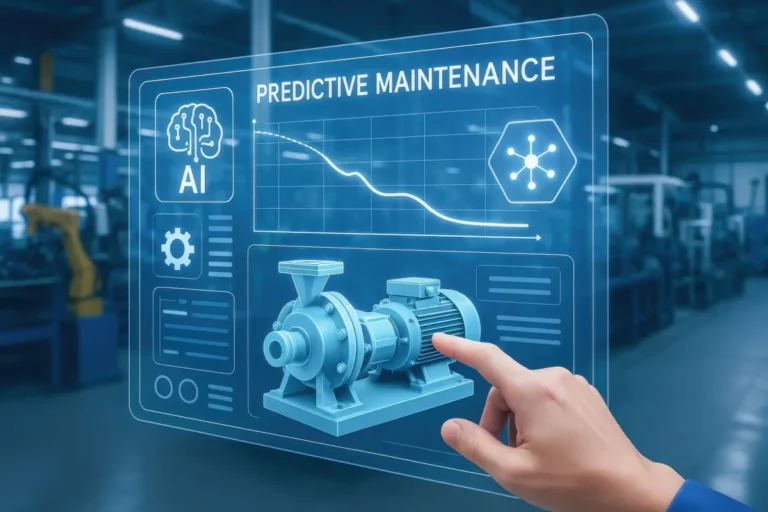
Right now, your scripts are doing a great job of reactive maintenance-they’re alerting you when something goes wrong. But what if you could predict when something was about to go wrong? That’s where predictive maintenance comes in.
Predictive maintenance uses data and machine learning to predict when equipment is likely to fail. For example, you could train a model to predict when your walk-in freezer’s compressor is about to fail based on its temperature patterns. Or, you could predict when your combi oven’s heating element is about to burn out based on its power usage.
This is a little more advanced, but it’s definitely doable. Here’s how you might get started:
- Collect data: Use your scripts to collect as much data as possible about your equipment. The more data you have, the better your predictions will be.
- Clean the data: Make sure your data is clean and consistent. Remove any outliers or errors.
- Train a model: Use a tool like Python’s scikit-learn to train a machine learning model on your data.
- Make predictions: Use your model to predict when equipment is likely to fail.
- Set up alerts: Set up alerts to notify you when the model predicts a failure.
This is a big topic, but it’s one that’s worth exploring if you want to take your automation to the next level.
Idea #2: Energy Efficiency Monitoring
Another way to take your automation to the next level is to monitor your kitchen’s energy efficiency. This can help you save money on your utility bills and reduce your environmental impact.
For example, you could write scripts to:
- Track the energy usage of your equipment.
- Identify equipment that’s using more energy than it should.
- Optimize your equipment’s usage to reduce energy consumption.
Here’s a simple script that logs the energy usage of your combi oven:
#!/bin/bash LOG_FILE="/home/pi/kitchen_logs/energy_logs.txt" OVEN_IP="192.168.1.100" OVEN_API_KEY="$OVEN_API_KEY" mkdir -p "$(dirname "$LOG_FILE")" DATE=$(date "+%Y-%m-%d %H:%M:%S") ENERGY_USAGE=$(curl -s "http://$OVEN_IP/api/energy?api_key=$OVEN_API_KEY" | jq -r '.usage') echo "$DATE - Energy usage: $ENERGY_USAGE kWh" >> "$LOG_FILE"You can then use this data to identify trends, optimize usage, and save money.
Idea #3: Integration with Inventory Management
Finally, you can take your automation to the next level by integrating it with your inventory management system. This way, you can automatically track how much food you’re using, when you need to reorder, and even predict future demand.
For example, you could write scripts to:
- Track how much food is being cooked in your combi oven.
- Log how much ice is being produced by your ice machine.
- Monitor how much food is being stored in your walk-in freezer.
You can then use this data to automatically update your inventory, reorder supplies, and reduce waste.
Here’s a simple script that logs how much food is being cooked in your combi oven:
#!/bin/bash LOG_FILE="/home/pi/kitchen_logs/inventory_logs.txt" OVEN_IP="192.168.1.100" OVEN_API_KEY="$OVEN_API_KEY" mkdir -p "$(dirname "$LOG_FILE")" DATE=$(date "+%Y-%m-%d %H:%M:%S") FOOD_COOKED=$(curl -s "http://$OVEN_IP/api/food?api_key=$OVEN_API_KEY" | jq -r '.amount') echo "$DATE - Food cooked: $FOOD_COOKED lbs" >> "$LOG_FILE"You can then use this data to update your inventory system automatically.
Idea #4: Remote Monitoring and Control
What if you could monitor and control your kitchen equipment from anywhere in the world? With remote monitoring and control, you can do just that. This is especially useful if you’re managing multiple locations or if you want to keep an eye on things while you’re away.
Here’s how you might set it up:
- Set up a VPN or remote desktop to access your Raspberry Pi from anywhere.
- Use a tool like TeamViewer or AnyDesk to access your Raspberry Pi’s desktop remotely.
- Set up a web interface to monitor and control your equipment from a browser.
For example, you could use Python’s Flask framework to create a simple web interface for your kitchen automation system:
from flask import Flask, render_template import sqlite3 app = Flask(__name__) @app.route("/") def dashboard(): conn = sqlite3.connect("/home/pi/kitchen_logs/kitchen_data.db") cursor = conn.cursor() # Get the latest freezer temperature cursor.execute("SELECT temperature FROM temperature_logs ORDER BY timestamp DESC LIMIT 1") freezer_temp = cursor.fetchone()[0] # Get the latest oven temperature cursor.execute("SELECT temperature FROM oven_logs ORDER BY timestamp DESC LIMIT 1") oven_temp = cursor.fetchone()[0] # Get the latest ice machine cycle count cursor.execute("SELECT MAX(cycle_count) FROM ice_machine_logs") ice_cycles = cursor.fetchone()[0] conn.close() return render_template("dashboard.html", freezer_temp=freezer_temp, oven_temp=oven_temp, ice_cycles=ice_cycles) if __name__ == "__main__": app.run(host="0.0.0.0", port=5000)You can then access this dashboard from any web browser by navigating to http://your_raspberry_pi_ip:5000.
And that’s just the beginning. Once you’ve got the basics down, the sky’s the limit. You can automate almost anything in your kitchen, from temperature logs to inventory management to energy efficiency. The key is to start small, build on what you’ve learned, and always keep an eye out for new ways to make your life easier.
Final Thoughts: Is This Really Worth It?
Alright, let’s take a step back. We’ve covered a lot of ground in this guide, from the basics of the command line to advanced automation techniques. But now I’m left with a question: Is this really worth it?
I mean, let’s be honest. Setting up automation scripts for your kitchen equipment isn’t exactly a walk in the park. It takes time, effort, and a willingness to learn new things. And if you’re already stretched thin running a kitchen, adding one more thing to your plate might feel overwhelming. So, is it worth the hassle?
For me, the answer is a resounding yes. Here’s why:
- It saves time: No more manual logs, no more forgotten checks. Your scripts do the work for you, freeing you up to focus on other things.
- It saves money: Fewer breakdowns, fewer emergency repairs, and longer equipment lifespans all add up to big savings.
- It reduces stress: Knowing that your equipment is being monitored 24/7 gives you peace of mind. No more waking up in the middle of the night wondering if the freezer is still running.
- It’s empowering: There’s something incredibly satisfying about writing a script that solves a real-world problem. It’s like having a superpower.
But I get it, it’s not for everyone. If you’re running a tiny kitchen with just a few pieces of equipment, the effort might not be worth it. And if you’re not comfortable with technology, the learning curve might feel too steep. That’s okay. The goal isn’t to turn you into a software engineer, it’s to give you the tools to make your life easier.
So, where do you go from here? If you’re ready to dive in, start with something simple, like the temperature logger script we wrote earlier. Get that working, and then build on it. If you’re not sure, that’s okay too. Maybe just bookmark this guide and come back to it later. Either way, I hope you’ve found something useful here.
And hey, if you do decide to give this a try, I’d love to hear how it goes. Drop me a line on Chefsicon.com or tag me on social media. Who knows? Maybe you’ll inspire me to write a follow-up guide on predictive maintenance for deep fryers or automating your coffee shop’s espresso machine.
Until then, happy automating. And remember: if I can do it, so can you.
FAQ
Q: Do I need to be a programmer to use command-line automation scripts for kitchen equipment maintenance?
A: Not at all! While some programming knowledge can be helpful, you don’t need to be a programmer to get started. Most of the scripts we’ve covered in this guide are just a few lines of code that you can copy, paste, and tweak to fit your needs. If you’re comfortable following instructions and troubleshooting basic issues, you’ll be fine. And if you get stuck, there are plenty of resources online (like Stack Overflow or Reddit) where you can ask for help.
Q: What kind of hardware do I need to get started with automation scripts?
A: The hardware you need depends on what you’re trying to automate. For basic tasks like logging temperatures, you can get started with a Raspberry Pi (a tiny, affordable computer) and a temperature sensor (like the DHT22). For more advanced tasks, you might need additional sensors (like water flow sensors, pressure sensors, or USB relays) or smart equipment with APIs. The good news is that most of this hardware is relatively inexpensive and easy to set up. If you’re not sure where to start, a Raspberry Pi starter kit is a great option.
Q: Can I use these scripts with any type of kitchen equipment?
A: It depends on the equipment. For basic tasks like logging temperatures or tracking usage, you can use these scripts with almost any type of equipment, as long as you have a way to read the data (like a sensor or an API). For more advanced tasks (like controlling equipment remotely), you’ll need smart equipment with an API or a way to interface with the equipment (like a USB relay). If you’re not sure whether your equipment is compatible, check the manufacturer’s documentation or do a quick search online. Many modern pieces of equipment (like combi ovens, sous vide machines, and refrigerators) have APIs that make automation easy.
Q: What if my scripts stop working? How do I troubleshoot them?
A: Troubleshooting scripts can be frustrating, but it’s a normal part of the process. Here are a few steps you can take if your scripts stop working:
- Check the logs: Most scripts write logs to a file. Check these logs to see if there are any error messages.
- Run the script manually: Instead of waiting for the script to run automatically, run it manually to see if it works. This can help you catch bugs before they become problems.
- Test individual commands: If the script is failing, try running the individual commands one by one to see which one is causing the issue.
- Search for solutions: If you’re getting an error message, copy and paste it into Google. Chances are, someone else has encountered the same issue and found a solution.
- Ask for help: If you’re stuck, don’t be afraid to ask for help. There are plenty of online communities (like Stack Overflow, Reddit, or even kitchen-specific forums) where you can get advice from other automation enthusiasts.
And remember, it’s okay to make mistakes. Even the best programmers run into issues from time to time. The key is to stay patient and keep learning.
@article{command-line-automation-scripts-for-kitchen-equipment-maintenance-a-chefs-guide-to-smarter-faster-upkeep,
    title   = {Command Line Automation Scripts for Kitchen Equipment Maintenance: A Chef’s Guide to Smarter, Faster Upkeep},
    author  = {Chef's icon},
    year    = {2026},
    journal = {Chef's Icon},
    url     = {https://chefsicon.com/command-line-automation-scripts-for-kitchen-equipment-maintenance/}
}