
The Best Fluffy Pancakes recipe you will fall in love with. Full of tips and tricks to help you make the best pancakes.
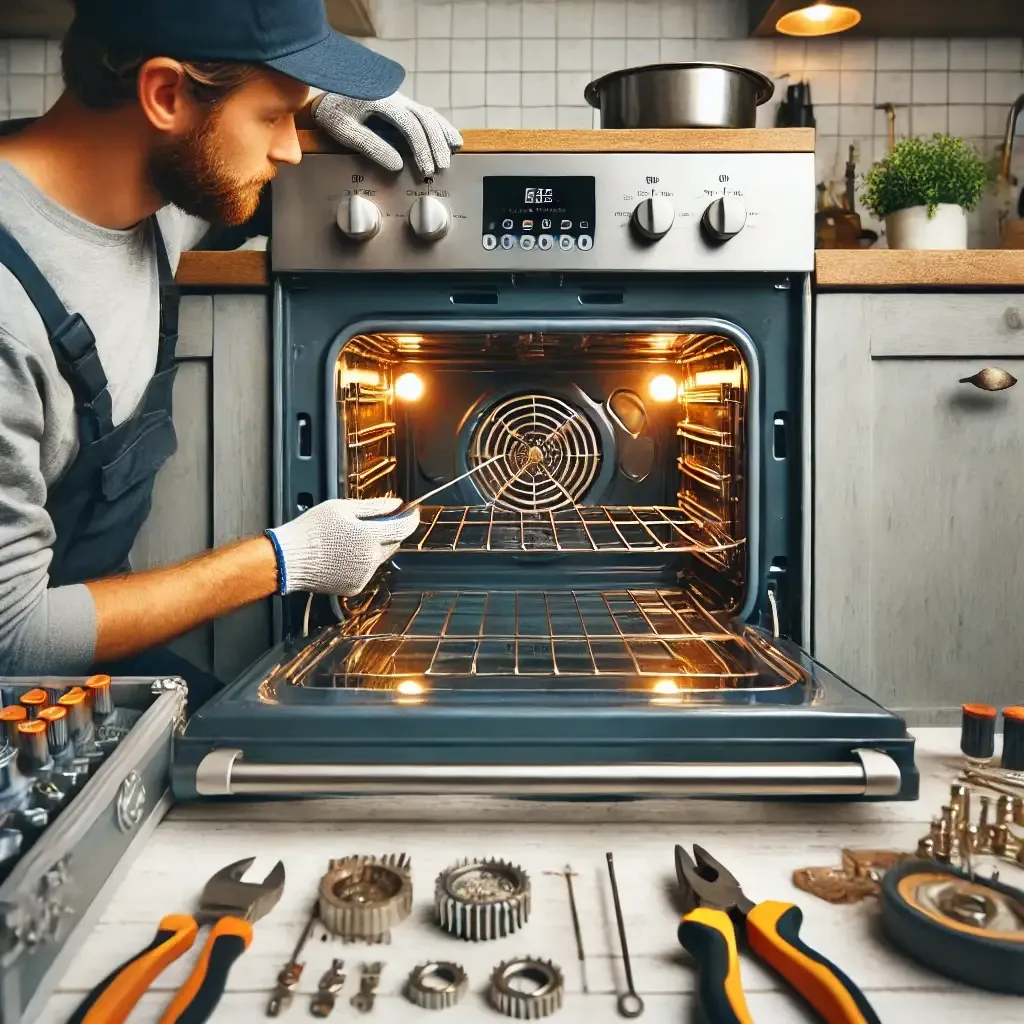
When Your Gas Oven Buttons Stop Listening: A Chef’s Frustrating (But Fixable) Reality
It’s a Tuesday evening, 7:14 PM, and I’m standing in my Nashville kitchen, hands dusted with flour, staring at my gas oven like it’s just insulted my grandmother. Luna, my rescue cat, watches from the counter with that judgmental side-eye only felines can master. The timer button, yeah, that one, just blinked twice, then went dark. No beep, no response. My perfectly proofed sourdough is in there, and the oven’s acting like a sulky teenager who refuses to clean their room. Sound familiar?
Gas oven button malfunctions aren’t just annoying; they’re a full-blown culinary betrayal. One minute you’re setting the perfect bake for your famous garlic knots, the next you’re locked in a silent standoff with a control panel that’s decided today’s the day it quits. But here’s the thing: most button issues aren’t as catastrophic as they feel. In fact, a lot of them stem from simple, fixable problems, ones that don’t require a service call or a second mortgage. Over the years, I’ve learned this the hard way, usually while a dinner party’s worth of guests are due in 45 minutes. (Pro tip: always have a backup dessert. Always.)
This guide isn’t just about slapping some duct tape on the problem and hoping for the best. It’s about understanding why these malfunctions happen, how to diagnose them like a pro, and, most importantly, how to fix them without losing your mind (or your dinner). We’ll cover everything from unresponsive touchpads to buttons that stick like they’ve been superglued, plus those weird phantom issues where the oven seems to have a mind of its own. And don’t worry, I’ll keep the jargon to a minimum. If I can figure this stuff out while simultaneously wrangling a misbehaving sourdough starter and Luna’s attempts to “help,” you can too.
By the end of this, you’ll know:
- How to tell if your oven’s buttons are truly broken or just being dramatic
- The most common culprits behind button malfunctions (spoiler: it’s not always the buttons themselves)
- Step-by-step troubleshooting for unresponsive, sticky, or erratic buttons
- When to call in the pros (and how to avoid getting ripped off)
- Simple maintenance tips to keep your oven’s control panel happy for years
Let’s start with the basics. Because sometimes, the simplest fixes are the ones we overlook in our panic.
The First Rule of Oven Button Club: Check the Obvious (Yes, Really)
Is It Plugged In? No, Seriously.
I know, I know. You’re rolling your eyes right now. “Sammy, I’ve been using an oven since before I could legally drink. Of course it’s plugged in.” But hear me out. Gas ovens still need electricity to power the control panel, ignition system, and, you guessed it, the buttons. If the display is dark or the buttons aren’t responding, the first thing you should do is check the power source. And I don’t just mean glancing at the outlet like it’s going to magically fix itself. Unplug the oven (or flip the circuit breaker if it’s hardwired), wait 30 seconds, then plug it back in. This simple reset can clear temporary glitches in the control board, which is often the culprit behind unresponsive buttons.
Still nothing? Check the outlet with another appliance to make sure it’s actually delivering power. I once spent an hour troubleshooting my oven’s touchpad, only to realize the outlet had tripped a GFCI that I’d forgotten about. Luna found the whole ordeal hilarious. I did not.
The “Did You Try Turning It Off and On Again?” Test
It’s the oldest IT trick in the book, but it works more often than you’d think. Modern gas ovens are basically computers with burners attached. Like any computer, they can get overwhelmed, confused, or just plain stubborn. A hard reset, unplugging the oven or flipping the breaker for a full minute, can clear out any temporary software glitches that are causing the buttons to misbehave. Think of it like giving your oven a quick nap. Sometimes, that’s all it needs to wake up refreshed and ready to cooperate.
If the buttons start working after the reset, great! But don’t celebrate just yet. This could be a sign of a deeper issue, like a failing control board or a power supply problem. Keep an eye on it over the next few days. If the issue keeps coming back, it’s time to dig deeper.
Are the Buttons Actually Broken, or Is It Just You?
Before you assume the worst, let’s rule out user error. (No judgment, we’ve all been there.) Some gas oven models have quirks that aren’t immediately obvious. For example:
- Lockout Mode: Many ovens have a child lock or control lock feature that disables the buttons. If your oven’s display shows a little lock symbol or “LOC,” you’ve probably activated it by accident. The fix? Usually, you just need to press and hold a specific button (often the “Cancel” or “Clear” button) for 3-5 seconds to unlock it. Check your manual, yes, the one you probably threw away, for the exact steps.
- Delayed Start: Some ovens let you set a delayed start time, which can make it seem like the buttons aren’t working if you’re not paying attention. If the display shows a timer counting down, the oven might be waiting to start. Press “Cancel” to clear it.
- Touch Sensitivity: If you’re using a touchpad (not physical buttons), sometimes it just needs a firmer press. Try cleaning the surface with a soft, damp cloth, dirt or grease can interfere with the sensors. Avoid harsh chemicals, though; they can damage the touchpad.
If none of these apply, it’s time to move on to the next level of troubleshooting. But first, let’s talk about what’s actually going on when your oven’s buttons decide to take a vacation.
The Usual Suspects: What’s Really Causing Your Oven’s Button Problems?
1. The Control Board: The Brain Behind the Brawn
The control board is the command center of your gas oven. It’s the thing that tells the buttons what to do, when to ignite the burners, and how hot to get. When the control board starts failing, the symptoms can be all over the place, unresponsive buttons, erratic behavior, or even the oven turning on by itself (which, let me tell you, is as creepy as it sounds).
How do you know if the control board is the problem? Here are a few red flags:
- The buttons work intermittently, sometimes they respond, sometimes they don’t.
- The display shows random characters or flickers like a horror movie prop.
- The oven turns on or off by itself, or the temperature fluctuates wildly.
- You’ve already ruled out power issues, lockout modes, and touchpad problems.
If you’re seeing these signs, the control board might be on its way out. Unfortunately, this isn’t a DIY fix for most people. Replacing a control board usually requires some electrical know-how and, in some cases, special tools. If you’re not comfortable working with wiring, it’s best to call a professional. But before you do, there’s one more thing to check: the ribbon cable.
2. The Ribbon Cable: The Unsung Hero (or Villain)
The ribbon cable is a thin, flat cable that connects the control board to the touchpad or button panel. It’s like the nervous system of your oven’s control interface. Over time, these cables can become loose, frayed, or corroded, which can cause all sorts of button-related issues. If your buttons are acting up, the ribbon cable is a prime suspect.
Here’s how to check it:
- Unplug the oven. Safety first, folks. Never work on an appliance that’s plugged in.
- Remove the control panel. This usually involves unscrewing a few screws on the back of the panel. Some models have a snap-on cover, check your manual for specifics.
- Locate the ribbon cable. It’s a thin, flat cable that connects the touchpad to the control board. It might be secured with a small clip or just plugged in.
- Inspect the cable. Look for signs of damage, like fraying, corrosion, or bent pins. If it looks damaged, it probably needs to be replaced.
- Re-seat the cable. Even if it looks fine, the connection might be loose. Gently unplug the cable and plug it back in, making sure it’s seated properly.
- Test the oven. Plug it back in and see if the buttons work. If they do, great! If not, the cable might still be the issue, or you could be dealing with a faulty control board.
Replacing a ribbon cable is usually a straightforward job, but it can be tricky if you’re not familiar with electronics. If you’re not comfortable doing it yourself, a repair technician can handle it in no time.
3. The Touchpad: When Buttons Stop Playing Nice
If your oven has a touchpad (as opposed to physical buttons), it’s essentially a thin, flexible circuit board with sensors that detect your finger presses. Over time, these sensors can wear out, get dirty, or become damaged, leading to unresponsive or erratic buttons. Here’s how to troubleshoot a touchpad:
- Clean the touchpad. Dirt, grease, and moisture can interfere with the sensors. Use a soft, damp cloth to clean the surface, then dry it thoroughly. Avoid using paper towels or abrasive cleaners, they can scratch the touchpad.
- Check for physical damage. If the touchpad is cracked, warped, or has visible signs of wear, it might need to be replaced. This is especially common in older ovens or models that see a lot of use.
- Test the buttons. Press each button firmly and see if it responds. If some buttons work and others don’t, the touchpad is likely the issue. If none of the buttons work, the problem might be with the control board or ribbon cable.
Replacing a touchpad is usually a DIY-friendly job, but it can vary depending on the model. Some touchpads are glued to the control panel, while others are held in place with screws or clips. Check your manual for instructions, or look up a tutorial for your specific oven model. And if you’re not comfortable doing it yourself, a repair technician can handle it for you.
4. The Power Supply: When the Juice Just Isn’t Flowing
We already talked about checking the power source, but let’s dive a little deeper. Gas ovens need electricity to power the control panel, ignition system, and other components. If the power supply is inconsistent or failing, it can cause all sorts of button-related issues. Here’s what to look for:
- Flickering display: If the display flickers or dims when you press a button, it could be a sign of a power supply issue. This is often caused by a failing power cord, loose wiring, or a problem with the outlet.
- Intermittent button response: If the buttons work sometimes but not others, it could be due to a loose connection or a failing power supply.
- No power at all: If the oven is completely dead, check the outlet, circuit breaker, and power cord. If everything looks fine, the issue might be with the oven’s internal power supply.
If you suspect a power supply issue, it’s best to call a professional. Working with electrical components can be dangerous if you’re not familiar with it, and it’s not worth the risk of shocking yourself (or worse). A repair technician can diagnose the problem and replace the power supply if needed.
5. The Ignition System: When Buttons Work, But the Oven Doesn’t
This one’s a little different, but it’s worth mentioning. If your buttons are working fine, you can set the temperature, turn on the oven, etc. but the oven isn’t heating up, the problem might not be with the buttons at all. It could be an issue with the ignition system. Here’s how to tell:
- Listen for the igniter. When you turn on the oven, you should hear a clicking sound as the igniter tries to light the gas. If you don’t hear anything, the igniter might be faulty.
- Check for a flame. If you can safely look inside the oven (and it’s not too hot), see if the gas is lighting. If there’s no flame, the igniter or gas valve might be the issue.
- Smell for gas. If you smell gas but the oven isn’t lighting, turn it off immediately and call a professional. This could be a serious safety hazard.
If the ignition system is the problem, it’s not something you should try to fix yourself. Gas leaks and faulty igniters can be dangerous, so it’s best to leave this one to the pros.
Step-by-Step Troubleshooting: How to Diagnose and Fix Button Issues
Step 1: The Power Play
Before you do anything else, let’s rule out the simplest possible cause: power issues. Here’s what to do:
- Unplug the oven. If it’s plugged into an outlet, unplug it. If it’s hardwired, flip the circuit breaker to the “off” position.
- Wait 30 seconds. This gives the control board time to reset.
- Plug it back in. If it’s hardwired, flip the breaker back on.
- Test the buttons. Try pressing a few buttons to see if they respond. If they do, great! The issue was likely a temporary glitch. If not, move on to the next step.
If the buttons still aren’t working, check the outlet with another appliance to make sure it’s delivering power. If the outlet is fine, the issue might be with the oven’s power cord or internal wiring.
Step 2: The Lockout Lowdown
Next, let’s check for lockout mode. This is a common feature on many gas ovens, and it’s easy to activate by accident. Here’s how to check:
- Look for a lock symbol. If your oven’s display shows a little lock icon or the word “LOC,” it’s in lockout mode.
- Check your manual. The exact steps to unlock the oven vary by model, but it usually involves pressing and holding a specific button (often “Cancel” or “Clear”) for 3-5 seconds.
- Try unlocking it. Press and hold the button as instructed in the manual. If the lock symbol disappears, the oven should be unlocked.
If the oven unlocks and the buttons start working, you’ve solved the problem! If not, move on to the next step.
Step 3: The Touchpad Tango
If your oven has a touchpad, it’s time to give it some TLC. Here’s how to troubleshoot it:
- Clean the touchpad. Use a soft, damp cloth to wipe down the surface. Avoid harsh chemicals or abrasive cleaners, they can damage the touchpad.
- Dry it thoroughly. Moisture can interfere with the sensors, so make sure the touchpad is completely dry before testing it.
- Test the buttons. Press each button firmly to see if it responds. If some buttons work and others don’t, the touchpad might be faulty. If none of the buttons work, the issue could be with the control board or ribbon cable.
If the touchpad is damaged or unresponsive, it might need to be replaced. This is usually a DIY-friendly job, but it can vary depending on the model. Check your manual for instructions, or look up a tutorial for your specific oven.
Step 4: The Ribbon Cable Rundown
If the touchpad looks fine but the buttons still aren’t working, it’s time to check the ribbon cable. Here’s how:
- Unplug the oven. Safety first! Never work on an appliance that’s plugged in.
- Remove the control panel. This usually involves unscrewing a few screws on the back of the panel. Some models have a snap-on cover, check your manual for specifics.
- Locate the ribbon cable. It’s a thin, flat cable that connects the touchpad to the control board. It might be secured with a small clip or just plugged in.
- Inspect the cable. Look for signs of damage, like fraying, corrosion, or bent pins. If it looks damaged, it probably needs to be replaced.
- Re-seat the cable. Even if it looks fine, the connection might be loose. Gently unplug the cable and plug it back in, making sure it’s seated properly.
- Test the oven. Plug it back in and see if the buttons work. If they do, great! If not, the cable might still be the issue, or you could be dealing with a faulty control board.
If the ribbon cable is damaged, it’s usually a straightforward replacement job. You can find replacement cables online or at appliance parts stores. Just make sure you get the right one for your oven model.
Step 5: The Control Board Conundrum
If you’ve ruled out power issues, lockout modes, touchpad problems, and ribbon cable issues, the control board is likely the culprit. Here’s how to check:
- Look for visual signs of damage. If the control board is burned, corroded, or has visible signs of wear, it might need to be replaced.
- Check for error codes. Some ovens display error codes when something goes wrong. Check your manual to see what the codes mean.
- Test the buttons. If the buttons work intermittently or not at all, the control board might be failing.
Replacing a control board is usually a job for a professional, but it’s not impossible to do yourself if you’re comfortable working with electronics. Just make sure you unplug the oven and follow all safety precautions. If you’re not sure what you’re doing, it’s best to call a repair technician.
When to Call in the Pros (And How to Avoid Getting Ripped Off)
Let’s be real: some oven repairs are beyond the scope of even the handiest home chefs. If you’ve tried all the troubleshooting steps and your oven’s buttons are still misbehaving, it might be time to call in a professional. But before you do, here’s how to make sure you’re getting a fair deal:
1. Know When to DIY and When to Call
Some oven repairs are DIY-friendly, while others are best left to the pros. Here’s a quick guide:
- DIY: Cleaning the touchpad, re-seating the ribbon cable, replacing a faulty touchpad or ribbon cable, resetting the control board.
- Call a Pro: Replacing the control board, fixing power supply issues, repairing the ignition system, dealing with gas leaks.
If you’re not comfortable working with electricity or gas, it’s always best to call a professional. The last thing you want is to turn a simple repair into a safety hazard.
2. How to Find a Reputable Repair Technician
Not all repair technicians are created equal. Here’s how to find one you can trust:
- Check reviews. Look for technicians with good reviews on sites like Yelp, Google, or the Better Business Bureau. Pay attention to what people say about their pricing, professionalism, and quality of work.
- Ask for recommendations. If you know anyone who’s had oven repairs done, ask who they used and if they were happy with the service.
- Get multiple quotes. Don’t go with the first technician you find. Get quotes from at least three different companies to make sure you’re getting a fair price.
- Ask about warranties. A good repair technician should stand behind their work. Ask if they offer any warranties on parts or labor.
- Check for certifications. Look for technicians who are certified by organizations like the Professional Service Association (PSA) or the National Appliance Service Technician Certification (NASTeC).
3. How to Avoid Getting Ripped Off
Unfortunately, not all repair technicians are honest. Here’s how to avoid getting scammed:
- Beware of lowball quotes. If a quote seems too good to be true, it probably is. Some technicians will give you a low quote to get the job, then hit you with unexpected charges once they’re on-site.
- Ask for a detailed estimate. A reputable technician should be able to give you a detailed estimate that includes the cost of parts and labor. If they can’t or won’t, that’s a red flag.
- Don’t pay upfront. Never pay for a repair before the work is done. A good technician will ask for payment after the job is complete.
- Get everything in writing. Make sure you get a written estimate and a receipt for the work. This protects you in case something goes wrong.
- Trust your gut. If something feels off, it probably is. Don’t be afraid to walk away and find another technician.
Preventative Maintenance: How to Keep Your Oven’s Buttons Happy for Years
They say an ounce of prevention is worth a pound of cure, and that’s especially true when it comes to your oven. A little regular maintenance can go a long way toward preventing button malfunctions and other issues. Here’s what you can do to keep your oven in tip-top shape:
1. Keep It Clean
Dirt, grease, and moisture are the enemies of your oven’s control panel. Over time, they can build up and interfere with the buttons, touchpad, and other components. Here’s how to keep things clean:
- Wipe down the control panel regularly. Use a soft, damp cloth to clean the buttons and touchpad. Avoid harsh chemicals or abrasive cleaners, they can damage the surface.
- Clean up spills immediately. If something spills on the control panel, wipe it up right away. The longer it sits, the more damage it can do.
- Use a mild cleaner. If you need to use a cleaner, stick to mild, non-abrasive options like dish soap and water. Avoid anything with bleach, ammonia, or other harsh chemicals.
2. Avoid Excessive Moisture
Moisture is another common culprit behind button malfunctions. It can seep into the control panel and cause corrosion, short circuits, and other issues. Here’s how to keep moisture at bay:
- Don’t spray cleaners directly on the control panel. Instead, spray the cleaner on a cloth and then wipe down the panel.
- Avoid using steam cleaners near the control panel. The steam can seep into the buttons and cause problems.
- Keep the oven door closed when not in use. This helps prevent moisture from the kitchen from getting into the control panel.
3. Be Gentle with the Buttons
It’s easy to get a little heavy-handed with the buttons, especially when you’re in a hurry. But pressing too hard can damage the touchpad or buttons over time. Here’s how to treat them with care:
- Press the buttons gently. You don’t need to hammer them to get a response. A light touch is usually enough.
- Avoid using sharp objects. Never use knives, forks, or other sharp objects to press the buttons. This can scratch or damage the touchpad.
- Don’t slam the oven door. This can jostle the control panel and cause issues over time.
4. Regularly Check for Loose Connections
Over time, the connections between the control board, ribbon cable, and touchpad can become loose. Regularly checking these connections can help prevent issues before they start. Here’s how:
- Unplug the oven. Safety first! Never work on an appliance that’s plugged in.
- Remove the control panel. This usually involves unscrewing a few screws on the back of the panel. Some models have a snap-on cover, check your manual for specifics.
- Check the ribbon cable. Make sure it’s securely connected to the control board and touchpad. If it’s loose, re-seat it.
- Inspect the wiring. Look for any signs of damage, like fraying or corrosion. If you see anything suspicious, it might be time to call a professional.
5. Keep the Oven’s Software Up to Date
Yes, some modern gas ovens have software that can be updated. If your oven is connected to Wi-Fi or has a USB port, check the manufacturer’s website for firmware updates. These updates can fix bugs, improve performance, and even add new features. Here’s how to check:
- Visit the manufacturer’s website. Look for a support or downloads section.
- Enter your oven’s model number. This will help you find the right updates for your specific model.
- Download the update. Follow the instructions to download and install the update. This usually involves connecting a USB drive to the oven or using a Wi-Fi connection.
- Install the update. Follow the on-screen instructions to install the update. This might take a few minutes, so be patient.
If you’re not comfortable updating the software yourself, a repair technician can do it for you.
Wrapping Up: When to Walk Away (And When to Fight for Your Oven)
So, you’ve tried everything. You’ve reset the oven, cleaned the touchpad, re-seated the ribbon cable, and even called in a professional. But your oven’s buttons are still acting like they’ve got a mind of their own. What now?
At this point, you’ve got a decision to make: do you keep fighting, or is it time to throw in the towel? Here’s how to decide:
When to Walk Away
Sometimes, the cost of repairing an oven just isn’t worth it. Here are a few signs it’s time to walk away:
- The repair cost is more than half the price of a new oven. If the repair is going to cost $500 and a new oven costs $800, it might be time to upgrade.
- The oven is more than 10 years old. Ovens don’t last forever. If yours is getting up there in years, it might be time to start shopping for a new one.
- The oven has other issues. If the buttons are just one of many problems, it might be a sign that the oven is on its last legs.
- You’ve had enough. Sometimes, you just don’t want to deal with it anymore. If the thought of another repair makes you want to scream, it’s okay to walk away.
When to Fight for Your Oven
On the other hand, there are times when it’s worth fighting for your oven. Here’s when to keep going:
- The oven is relatively new. If your oven is less than 5 years old, it’s probably worth repairing.
- The repair cost is reasonable. If the repair is going to cost less than a new oven, it’s worth considering.
- You love your oven. Maybe it’s the perfect size, or it has a feature you can’t live without. If you’re attached to your oven, it’s worth fighting for.
- You’re not ready to upgrade. If you’re happy with your current oven and don’t want to deal with the hassle of shopping for a new one, repairing it might be the way to go.
If you decide to keep fighting, don’t give up. There’s usually a solution out there, even if it’s not immediately obvious. And if you do decide to walk away, don’t feel guilty. Sometimes, a new oven is the best option.
Either way, you’ve learned a lot along the way. You’ve become a troubleshooting pro, and you’re better equipped to handle whatever your oven throws at you next. And who knows? Maybe your next oven will come with buttons that actually work the first time.
FAQ: Your Gas Oven Button Questions, Answered
Q: My oven’s touchpad is unresponsive. What’s the first thing I should check?
A: Start with the basics: unplug the oven for 30 seconds to reset the control board, then check for lockout mode (look for a lock symbol on the display). If that doesn’t work, clean the touchpad with a soft, damp cloth, dirt and grease can interfere with the sensors. If the problem persists, the issue might be with the ribbon cable or control board.
Q: Some of my oven’s buttons work, but others don’t. Is this a sign of a bigger problem?
A: It could be. If only certain buttons are unresponsive, the touchpad is likely the issue. This is especially common in older ovens or models with heavy use. Try cleaning the touchpad first. If that doesn’t work, the touchpad might need to be replaced. If none of the buttons work, the problem could be with the control board or ribbon cable.
Q: Can I replace the touchpad or control board myself, or should I call a professional?
A: It depends on your comfort level with electronics. Replacing a touchpad is usually a DIY-friendly job, but it can vary depending on the model. Some touchpads are glued to the control panel, while others are held in place with screws or clips. Replacing a control board is more complex and usually requires some electrical know-how. If you’re not comfortable working with wiring, it’s best to call a professional. Safety first!
Q: My oven’s display is flickering, and the buttons are acting erratically. What’s going on?
A: Flickering displays and erratic button behavior are often signs of a power supply issue or a failing control board. Start by checking the power source, unplug the oven, wait 30 seconds, then plug it back in. If the problem persists, check the outlet with another appliance to make sure it’s delivering power. If the outlet is fine, the issue might be with the oven’s internal power supply or control board. This is usually a job for a professional.
@article{how-to-troubleshoot-common-gas-oven-button-malfunctions-a-chefs-hands-on-guide,
    title   = {How to Troubleshoot Common Gas Oven Button Malfunctions: A Chef’s Hands-On Guide},
    author  = {Chef's icon},
    year    = {2026},
    journal = {Chef's Icon},
    url     = {https://chefsicon.com/how-to-troubleshoot-common-gas-oven-button-malfunctions/}
}