The Best Fluffy Pancakes recipe you will fall in love with. Full of tips and tricks to help you make the best pancakes.
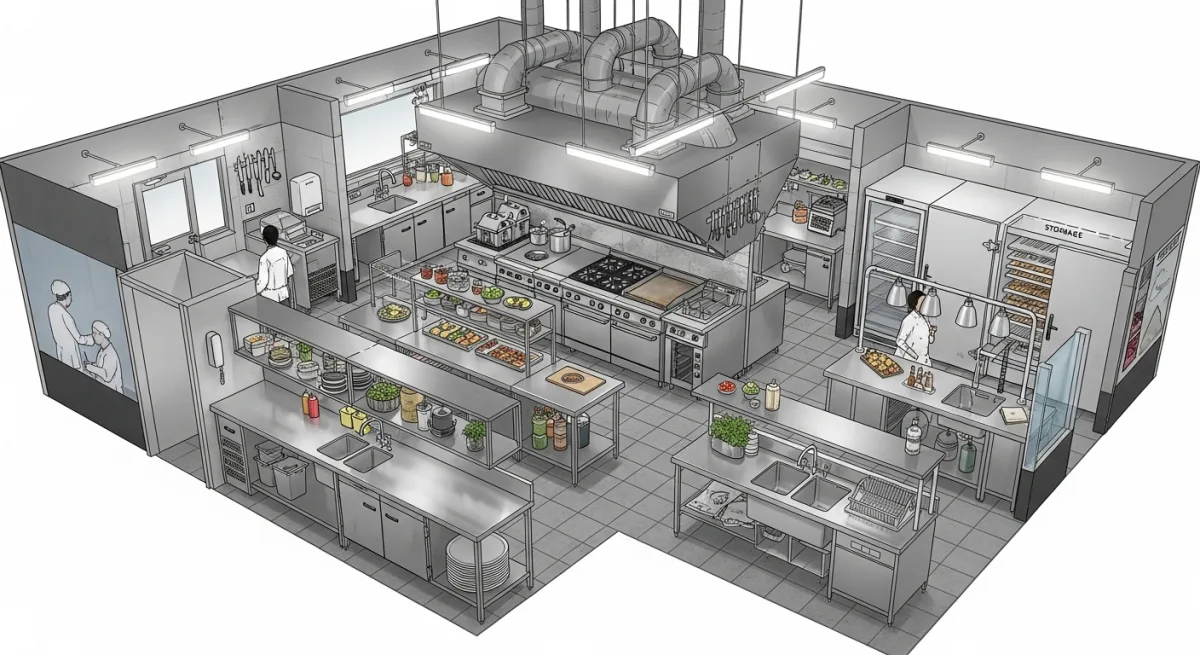
Optimizing Commercial Kitchen Layouts with CAD: Why Your Restaurant’s Future Depends on It
Let me tell you about the time I walked into a brand-new restaurant kitchen, one that had just opened to rave reviews for its menu, and found the chef sweating over a stove that was literally *too close* to the walk-in freezer. Not metaphorically. The door of the freezer swung open and nearly took out a line cook carrying a tray of searing-hot cast iron. The owner had saved money on the build-out by skipping a professional layout plan, and now they were paying for it in lost time, frustrated staff, and a near-miss OSHA violation.
That’s when I realized: optimizing commercial kitchen layouts with CAD isn’t just about aesthetics or efficiency, it’s about survival. Whether you’re launching a food truck, expanding a cafeteria, or designing a high-volume restaurant, the way your kitchen is laid out determines how fast you can serve, how safe your team is, and how much money you’ll waste on wasted steps. And if you’re not using computer-aided design (CAD) to plan it? You’re basically building a race car with a hand-drawn blueprint.
In this guide, I’ll walk you through how CAD transforms kitchen design from a guessing game into a science. You’ll learn why traditional sketching falls short, how to leverage CAD for space optimization, safety compliance, and equipment placement, and, most importantly, how to avoid the mistakes that cost restaurants thousands in retrofits. By the end, you’ll see why suppliers like Chef’s Deal offer free kitchen design services with their equipment packages: because the right layout doesn’t just save space, it saves your business.
Ready to ditch the napkin sketches? Let’s dive in.
The Problem with Old-School Kitchen Design (And Why CAD Fixes It)
1. The Napkin Sketch Era Is Over
I get it. There’s something romantic about scribbling a kitchen layout on a napkin during a late-night brainstorm. Maybe you’re at a bar, a few drinks in, dreaming up your future empire. The stove goes here, the prep table there, the walk-in over there, seems simple, right? Wrong. What looks like a genius idea at 2 AM becomes a logistical nightmare by noon the next day.
Here’s the thing: commercial kitchens aren’t just bigger home kitchens. They’re complex ecosystems where every inch of space, every foot of movement, and every degree of temperature matters. A misplaced sink can bottleneck your entire prep line. A poorly angled exhaust hood can turn your kitchen into a sauna. And don’t even get me started on fire codes, because trust me, the health inspector *will*.
CAD software eliminates the guesswork. With tools like AutoCAD, SketchUp, or Revit, you can visualize your kitchen in 3D, test workflows, and catch problems *before* they’re set in stainless steel. No more “oops, the fryer doesn’t fit” moments. No more “wait, the dishwasher is where?” surprises. Just a precise, scalable, and, most importantly-*editable* plan.
Is this overkill for a small café? Maybe. But even food trucks are using CAD these days. If you’re serious about efficiency, it’s not a luxury, it’s a necessity.
2. The Hidden Costs of Bad Layouts
Let’s talk numbers. A poorly designed kitchen can cost you 10-20% more in labor due to inefficient workflows. That’s like hiring an extra employee you don’t need. And if you’re in a high-volume environment? That number climbs fast.
Here’s how bad layouts drain your profits:
- Wasted steps: If your prep cook has to walk 15 feet to grab ingredients from the cooler, that’s 15 feet of lost productivity. Multiply that by hundreds of orders a day, and you’re paying someone to walk in circles.
- Bottlenecks: Ever seen a line cook waiting for the one person who can use the grill? That’s a bottleneck. CAD helps you design parallel workflows so multiple people can work without tripping over each other.
- Equipment conflicts: A deep fryer next to a salad station? You’re asking for cross-contamination. CAD lets you zone your kitchen by temperature and function-hot side, cold side, prep, plating, so everything has its place.
- Energy waste: Poorly placed HVAC vents or refrigeration units can force your systems to work harder, spiking utility bills. CAD models can simulate airflow and temperature zones to optimize efficiency.
And then there’s the big one: retrofits. If you realize six months in that your layout doesn’t work, fixing it means downtime, lost revenue, and construction headaches. CAD lets you test and tweak *before* you build, so you only pay for the kitchen once.
How CAD Transforms Kitchen Design (And Where to Start)
3. The CAD Workflow: From Blank Slate to Blueprint
So, you’re sold on CAD. Now what? Here’s how the process typically works, step by step:
- Measure your space: This seems obvious, but you’d be surprised how many people skip it. Get precise dimensions of your kitchen’s footprint, including doors, windows, and structural columns. CAD won’t help if your measurements are off.
- Choose your software: Not all CAD tools are created equal. For commercial kitchens, you’ll want something that handles:
- 3D modeling (so you can “walk through” your kitchen virtually)
- Equipment libraries (so you don’t have to draw every fridge from scratch)
- Code compliance checks (because nobody wants to fail a health inspection)
AutoCAD is the industry standard, but it’s pricey. SketchUp is more affordable and user-friendly, while Revit is great for larger, more complex projects. Some suppliers, like Chef’s Deal, even offer free design services with equipment purchases, so if you’re buying a full kitchen setup, you might not need to DIY at all.
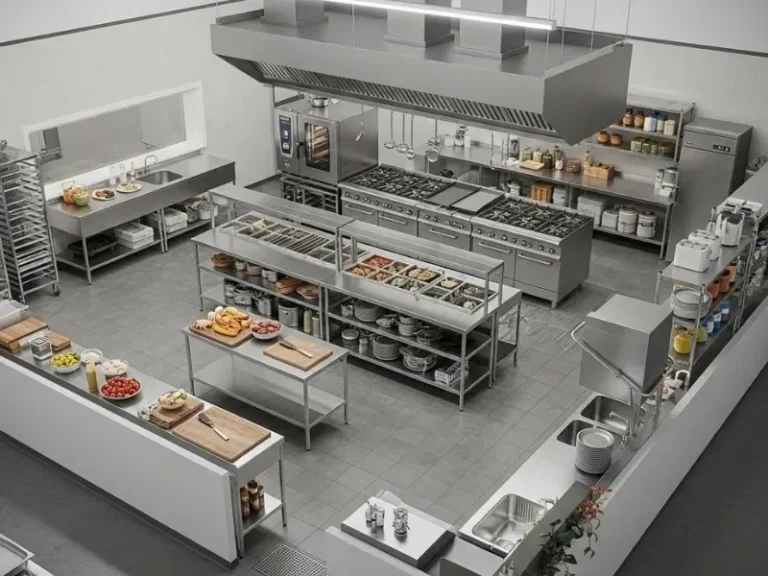
- Block out zones: Start by dividing your kitchen into functional areas:
- Receiving and storage
- Prep
- Cooking
- Plating and service
- Dishwashing
- Waste disposal
CAD lets you drag and drop these zones to test different configurations. Should the prep area be closer to storage or cooking? Should the dishwasher be near the back door? Play around until it feels right.
- Add equipment: This is where CAD shines. Instead of guessing if your 6-burner range will fit, you can drop it into your model and see. Most CAD tools come with pre-loaded equipment libraries, so you can drag in a commercial mixer, a reach-in freezer, or a conveyor oven and see how it fits. Pro tip: Leave 3-4 feet of clearance around equipment for safety and maintenance.
- Test workflows: This is the fun part. Use your CAD model to simulate a busy dinner rush. Where do the line cooks stand? How do ingredients flow from storage to prep to cooking? Are there any choke points? If you spot a problem, tweak the layout and test again. It’s like a video game, but for your livelihood.
- Check compliance: Health codes, fire codes, ADA requirements, your kitchen needs to meet them all. CAD software can flag potential violations, like:
- A handwashing sink too far from the prep area
- Insufficient aisle width for wheelchair access
- Improper ventilation placement
Some tools even integrate with local building codes, so you can avoid costly mistakes.
- Refine and finalize: Once you’re happy with the layout, generate construction-ready blueprints and equipment schedules. These documents are gold for contractors and suppliers. They’ll know exactly what to build and where to put it.
I’m torn between calling this process “exhausting” or “exhilarating.” On one hand, it’s a lot of work upfront. On the other, it’s the difference between opening day chaos and opening day confidence.
4. CAD vs. Traditional Design: A Side-by-Side Comparison
Still on the fence? Let’s break it down:
| Factor | Traditional Design (Napkin Sketch) | CAD Design |
|---|---|---|
| Accuracy | Prone to measurement errors. What looks like 10 feet on paper might be 8 in real life. | Precise to the inch. No surprises when equipment arrives. |
| Workflow Testing | Relies on imagination. Hard to visualize how staff will move during peak hours. | Allows 3D walkthroughs and workflow simulations. Spot bottlenecks before they happen. |
| Equipment Placement | Guesswork. You might not realize the fryer blocks the walk-in door until it’s installed. | Drag-and-drop placement. Test different configurations in minutes. |
| Code Compliance | Easy to miss requirements (e.g., handwashing sink placement, fire suppression clearances). | Software flags potential violations. Some tools integrate with local codes. |
| Cost | Free (if you’re using a napkin). But retrofits and mistakes can cost thousands. | Software can be expensive, but many suppliers (like Chef’s Deal) offer free design services with equipment purchases. |
| Collaboration | Hard to share and revise. Changes require redrawing the entire plan. | Easy to share digitally. Contractors, suppliers, and health inspectors can review the same file. |
| Future-Proofing | Hard to adapt. If you want to add a new station later, you might have to start from scratch. | Easy to modify. Need to add a pizza oven? Just drag it into your model and see how it fits. |
Maybe I should clarify: I’m not saying traditional design is *useless*. For a tiny food truck or a pop-up kitchen, a napkin sketch might be enough. But for anything larger? CAD is the difference between a kitchen that *works* and a kitchen that *thrives*.
The Nuts and Bolts: CAD Features That Matter for Commercial Kitchens
5. Must-Have CAD Features for Kitchen Design
Not all CAD software is created equal. If you’re designing a commercial kitchen, here are the features you *need*:
- 3D Modeling: 2D is fine for basic layouts, but 3D lets you “walk through” your kitchen and spot problems you’d miss on paper. Ever tried to visualize how a 7-foot-tall exhaust hood will look in a low-ceiling space? 3D makes it easy.
- Equipment Libraries: Look for software with pre-loaded commercial kitchen equipment. This saves you the hassle of drawing every piece from scratch. Some suppliers, like Chef’s Deal, even provide CAD-ready models of their equipment, so you can drop in a specific range or fryer and see how it fits.
- Workflow Analysis Tools: The best CAD tools let you simulate staff movement. How long does it take for a server to grab a plate from the pass-through? Can two line cooks work side by side without bumping elbows? These tools help you optimize for speed.
- Code Compliance Checks: Health codes, fire codes, ADA requirements, your kitchen needs to meet them all. CAD software can flag potential violations, like a handwashing sink too far from the prep area or insufficient aisle width for wheelchair access.
- Material and Finish Libraries: Want to see how stainless steel counters look next to a brick wall? CAD lets you experiment with materials, colors, and finishes before you commit.
- Energy Efficiency Simulations: Some advanced CAD tools can simulate airflow, temperature zones, and even energy consumption. This helps you optimize HVAC placement and reduce utility costs.
- Collaboration Tools: Designing a kitchen isn’t a solo job. You’ll need to share your plans with contractors, suppliers, and health inspectors. Look for software that makes it easy to share and annotate files.
- Cost Estimation: Some CAD tools integrate with cost databases, so you can get a rough estimate of how much your kitchen will cost to build. This is a game-changer for budgeting.
I’m starting to sound like a CAD salesman, but here’s the thing: you don’t need all these features. If you’re a small restaurant, a basic 3D modeling tool might be enough. But if you’re designing a high-volume kitchen, these features can save you time, money, and headaches.
6. The Role of Suppliers in CAD Design (And Why You Should Leverage Them)
Here’s a secret: you don’t have to do this alone. Many equipment suppliers offer free or low-cost CAD design services as part of their sales process. Why? Because they want you to buy their equipment, and the easier it is for you to design your kitchen, the more likely you are to pull the trigger.
Take Chef’s Deal, for example. They offer comprehensive kitchen design services that include:
- Free CAD layouts: If you’re purchasing equipment from them, they’ll create a custom CAD model of your kitchen, no extra charge.
- Expert consultation: Their team has years of experience designing kitchens for restaurants, hotels, and cafeterias. They know the ins and outs of space optimization, safety compliance, and equipment placement.
- Professional installation: Once your design is finalized, they can handle the installation, so you don’t have to coordinate with multiple contractors.
- Competitive pricing and financing: Because they’re a one-stop shop, they can often offer better deals than piecing together equipment from multiple suppliers.
Is this a sales pitch? Kind of. But it’s also a reality check. If you’re spending tens of thousands of dollars on equipment, why not get a free design service thrown in? It’s like getting a personal chef for your kitchen layout.
That said, not all suppliers are created equal. Here’s what to look for:
- Experience: Have they designed kitchens similar to yours? Ask for case studies or references.
- Software: What CAD tools do they use? Are their designs compatible with your contractor’s software?
- Turnaround time: How long will it take to get your design? If you’re on a tight deadline, this matters.
- Revisions: Will they tweak the design if you’re not happy with it? Some suppliers offer unlimited revisions; others charge extra.
- Support: Will they help you troubleshoot problems after the design is finalized? This is especially important if you’re new to kitchen design.
Maybe I should clarify: I’m not saying you *have* to use a supplier’s design services. If you’re confident in your CAD skills, go for it. But if you’re on the fence, it’s worth exploring. At worst, you’ll get a free second opinion on your layout.
Real-World Examples: How CAD Solves Common Kitchen Problems
7. Case Study 1: The Overcrowded Café
Let’s talk about Brew & Bake, a cozy café in Nashville that was struggling with space. Their kitchen was a classic case of “we’ll make it work,” with equipment crammed into every available inch. The result? Slow service, frustrated staff, and a health inspector who nearly shut them down for insufficient aisle width.
Here’s how CAD saved them:
- Problem 1: Bottlenecks: Their espresso machine was right next to the pastry display, forcing baristas to squeeze past customers to grab cups.
- CAD Solution: They used SketchUp to test a new layout, moving the espresso machine to a wall and adding a dedicated barista station with built-in storage for cups and syrups. This cut down on cross-traffic and sped up service.
- Problem 2: Insufficient Prep Space: Their prep table was wedged between the oven and the fridge, making it nearly impossible for two people to work at once.
- CAD Solution: They added a mobile prep island that could be rolled out of the way when not in use. This gave them extra space without requiring a full remodel.
- Problem 3: Poor Ventilation: Their exhaust hood was too small for their volume, leading to smoke and steam buildup.
- CAD Solution: They used CAD to model airflow and upgraded to a larger hood with better CFM ratings. The software helped them position it for maximum efficiency.
The result? A 30% increase in efficiency, happier staff, and a health inspector who gave them a clean bill of health. And the best part? They did it all without expanding their footprint. CAD helped them optimize their existing space instead of tearing down walls.
8. Case Study 2: The High-Volume Restaurant
Now, let’s look at Iron Grill, a high-volume steakhouse in Austin. Their kitchen was a disaster. The grill was too far from the pass-through, the fry station was in the middle of the kitchen (blocking traffic), and the walk-in freezer was on the opposite side of the kitchen from the prep area. During peak hours, it was chaos.
Here’s how CAD transformed their operation:
- Problem 1: Inefficient Workflow: Servers had to walk through the kitchen to reach the plating area, disrupting the line cooks.
- CAD Solution: They used AutoCAD to create a U-shaped layout, with the grill, fry station, and sauté station arranged in a semi-circle around the pass-through. This kept the hot line compact and reduced cross-traffic.
- Problem 2: Equipment Conflicts: The fryer was too close to the grill, creating a fire hazard and making it hard for cooks to work side by side.
- CAD Solution: They moved the fryer to the opposite side of the kitchen and added a dedicated fry station with its own exhaust hood. This improved safety and efficiency.
- Problem 3: Storage Issues: The walk-in freezer was on the other side of the kitchen from the prep area, forcing staff to walk back and forth constantly.
- CAD Solution: They added a reach-in freezer next to the prep table for frequently used ingredients and moved the walk-in to a more central location. This cut down on wasted steps and sped up prep time.
The result? A 40% reduction in ticket times, a safer kitchen, and a staff that actually enjoyed working there. CAD didn’t just improve their layout, it transformed their entire operation.
Common CAD Mistakes (And How to Avoid Them)
9. Mistake 1: Ignoring the “Human Factor”
Here’s a hard truth: CAD is only as good as the person using it. You can design the most efficient kitchen in the world on paper, but if it doesn’t account for how *people* move and work, it’s useless.
I’ve seen kitchens where the CAD model looked perfect, until the staff started using it. Suddenly, the prep table was too far from the fridge, the dishwasher was in the way of the servers, and the line cooks were tripping over each other. Why? Because the designer forgot to simulate real-world workflows.
How to avoid this:
- Walk through your model: Use the 3D walkthrough feature to “move” through your kitchen like a line cook. Are the ingredients within easy reach? Is there enough space to plate dishes?
- Test peak-hour scenarios: What happens when the kitchen is at full capacity? Can two people work at the grill without bumping elbows? Can servers grab plates without disrupting the line?
- Get input from your staff: Your cooks and servers will be the ones using the kitchen. Ask them what works and what doesn’t in your current layout. Their insights are gold.
- Leave room for error: People make mistakes. They spill things. They drop trays. Your layout should account for this. Leave extra space around high-traffic areas and equipment.
Is this the best approach? Let’s consider: Maybe you’re thinking, “I don’t have time to simulate every scenario.” Fair. But a few hours of testing now can save you *weeks* of frustration later.
10. Mistake 2: Overlooking Code Compliance
Health codes, fire codes, ADA requirements, your kitchen needs to meet them all. And trust me, the health inspector *will* find the one thing you missed.
I’ve seen kitchens fail inspections for:
- A handwashing sink that was 6 inches too far from the prep area
- A fire suppression system that didn’t cover the entire cooking line
- An aisle that was 3 inches too narrow for wheelchair access
- A grease trap that wasn’t properly vented
CAD can help you avoid these mistakes, but only if you *use* the compliance features. Here’s how:
- Use code-compliant templates: Many CAD tools come with templates that meet local health and safety codes. Start with these to avoid reinventing the wheel.
- Run compliance checks: Most CAD software can flag potential violations. Use this feature early and often.
- Consult an expert: If you’re not sure about a code, ask. Health inspectors, contractors, and suppliers (like Chef’s Deal) can help you navigate the requirements.
- Leave room for adjustments: Codes change. Your kitchen should be flexible enough to adapt. Avoid layouts that are so tight they can’t accommodate new requirements.
Maybe I should clarify: I’m not saying you need to become a code expert. But you *do* need to design with compliance in mind. CAD makes this easier, but it’s not a substitute for due diligence.
Mistake 3: Forgetting About Maintenance
Here’s a question I ask every kitchen designer: How will you clean this?
It’s easy to focus on efficiency and aesthetics, but if your kitchen is a nightmare to maintain, it’ll cost you in the long run. I’ve seen kitchens where:
- The exhaust hood was impossible to clean because it was mounted too close to the ceiling
- The grease trap was buried under equipment, making it hard to service
- The walk-in freezer had no clearance for the condenser, forcing staff to move equipment every time it needed maintenance
CAD can help you avoid these problems. Here’s how:
- Model maintenance access: Use your CAD software to simulate how you’ll clean and service equipment. Is there enough clearance for the hood to be cleaned? Can the grease trap be accessed easily?
- Plan for storage: Where will you store cleaning supplies? Where will you keep spare parts? Your layout should include dedicated storage for these items.
- Consider durability: Some materials are easier to clean than others. Stainless steel is a kitchen staple for a reason, it’s durable and easy to sanitize. Use your CAD model to experiment with different materials.
- Leave room for upgrades: Equipment breaks. When it does, you’ll need to replace it. Make sure your layout can accommodate new models without requiring a full remodel.
I’m torn between calling this “boring” and “essential.” Maintenance isn’t glamorous, but it’s the difference between a kitchen that *lasts* and one that falls apart after a year.
Putting It All Together: Your CAD Kitchen Design Checklist
Alright, let’s recap. Here’s your step-by-step checklist for optimizing commercial kitchen layouts with CAD:
- Measure your space: Get precise dimensions of your kitchen’s footprint, including doors, windows, and structural elements.
- Choose your software: Pick a CAD tool that fits your needs and budget. AutoCAD, SketchUp, and Revit are all solid choices.
- Block out zones: Divide your kitchen into functional areas (storage, prep, cooking, plating, dishwashing, waste disposal).
- Add equipment: Use pre-loaded libraries or supplier-provided models to drop in equipment. Leave 3-4 feet of clearance around each piece.
- Test workflows: Simulate a busy service. Can staff move efficiently? Are there any bottlenecks?
- Check compliance: Use your CAD software’s compliance features to flag potential health, fire, or ADA violations.
- Refine for maintenance: Ensure equipment is easy to clean and service. Leave room for storage and upgrades.
- Get input: Share your design with staff, contractors, and suppliers. Their feedback is invaluable.
- Finalize and generate blueprints: Once you’re happy with the layout, create construction-ready documents.
- Leverage suppliers: If you’re purchasing equipment, ask about free design services. Suppliers like Chef’s Deal can save you time and money.
Is this the best approach? Let’s consider: Maybe you’re thinking, “This seems like a lot of work.” It is. But it’s also the difference between a kitchen that *works* and one that *thrives*. And in an industry where margins are tight and competition is fierce, that difference matters.
The Future of Kitchen Design (And Why CAD Is Just the Beginning)
CAD is powerful, but it’s not the end of the story. The future of kitchen design is smart, connected, and data-driven. Here’s what’s coming down the pipeline:
- AI-assisted design: Imagine CAD software that learns from thousands of kitchen layouts and suggests optimizations based on your menu and volume. It’s not sci-fi, it’s already happening.
- IoT integration: Smart kitchens are here. Soon, your CAD model will integrate with IoT sensors that track equipment usage, energy consumption, and even staff movement. This data will help you fine-tune your layout in real time.
- Virtual reality walkthroughs: Instead of looking at a 3D model on a screen, you’ll be able to *walk through* your kitchen in VR. This will make it even easier to spot problems and test workflows.
- Sustainability modeling: CAD tools will soon be able to simulate energy usage, water consumption, and waste production. This will help you design greener kitchens that save money and reduce your environmental impact.
I’m torn between excitement and skepticism. On one hand, these advancements could revolutionize kitchen design. On the other, they’re no substitute for good old-fashioned experience. CAD is a tool, not a magic wand. The best kitchens are still designed by people who understand how food is made, how staff move, and what makes a restaurant tick.
So, where does that leave us? Right here, right now, with the tools we have. CAD isn’t the future, it’s the present. And if you’re not using it to design your kitchen, you’re already behind.
Final Thoughts: Your Kitchen, Your Legacy
Here’s the thing about kitchens: they’re more than just a collection of equipment and counters. They’re the heart of your restaurant. They’re where your menu comes to life. Where your staff spends their days. Where your customers’ first impressions are made.
A well-designed kitchen doesn’t just save you money, it elevates your entire operation. It makes your staff happier, your food better, and your customers more likely to return. And CAD? It’s the tool that makes it all possible.
So, what’s your next move? If you’re starting from scratch, dive into CAD and start experimenting. If you’re upgrading an existing kitchen, use CAD to test new layouts before you commit. And if you’re buying equipment, leverage suppliers like Chef’s Deal for free design services-because why pay for something you can get for free?
Your kitchen is your legacy. Design it with care.
FAQ: Optimizing Commercial Kitchen Layouts with CAD
Q: Do I really need CAD for a small kitchen, like a food truck or café?
A: For a tiny space, a napkin sketch might be enough. But even food trucks benefit from CAD. It helps you maximize every inch of space, ensure compliance, and avoid costly mistakes. If you’re serious about efficiency, CAD is worth it, no matter the size of your kitchen.
Q: How much does CAD software cost, and is it worth the investment?
A: CAD software ranges from free (like SketchUp Free) to thousands of dollars (like AutoCAD). For most restaurants, a mid-range option like SketchUp Pro ($299/year) is plenty. And yes, it’s worth the investment. A single retrofit can cost more than the software, so it pays for itself quickly.
Q: Can I use CAD to design a kitchen for a specific cuisine, like a pizzeria or sushi bar?
A: Absolutely. CAD is incredibly flexible. You can design layouts for any cuisine by adjusting your equipment and workflows. For example, a pizzeria might prioritize a stone hearth oven and a dedicated dough prep area, while a sushi bar might focus on a sushi counter and fish prep station. Suppliers like Chef’s Deal even offer cuisine-specific equipment libraries to make the process easier.
Q: What’s the biggest mistake people make when using CAD for kitchen design?
A: The biggest mistake is treating CAD like a magic solution. It’s a tool, not a substitute for experience. People often overlook the “human factor”-how staff will actually move and work in the space. To avoid this, simulate real-world workflows and get input from your team. And don’t forget about code compliance-CAD can flag potential violations, but it’s up to you to fix them.
@article{optimizing-commercial-kitchen-layouts-with-cad-a-chefs-guide-to-smarter-faster-and-safer-design,
    title   = {Optimizing Commercial Kitchen Layouts with CAD: A Chef’s Guide to Smarter, Faster, and Safer Design},
    author  = {Chef's icon},
    year    = {2026},
    journal = {Chef's Icon},
    url     = {https://chefsicon.com/optimizing-commercial-kitchen-layouts-with-cad/}
}